LinkedIn Snippets in Kondo
Snippets
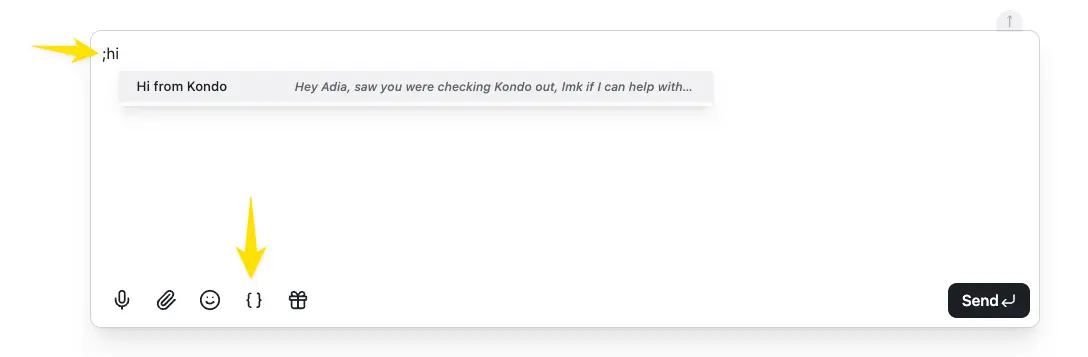
Snippets are saved messages for the things you type over and over. Instead of copy-pasting, type ; in the composer, keep typing to match the snippet you want — ;hi, say — and hit Enter to insert it.
There is no limit on the number of snippets you can create.
Placeholders
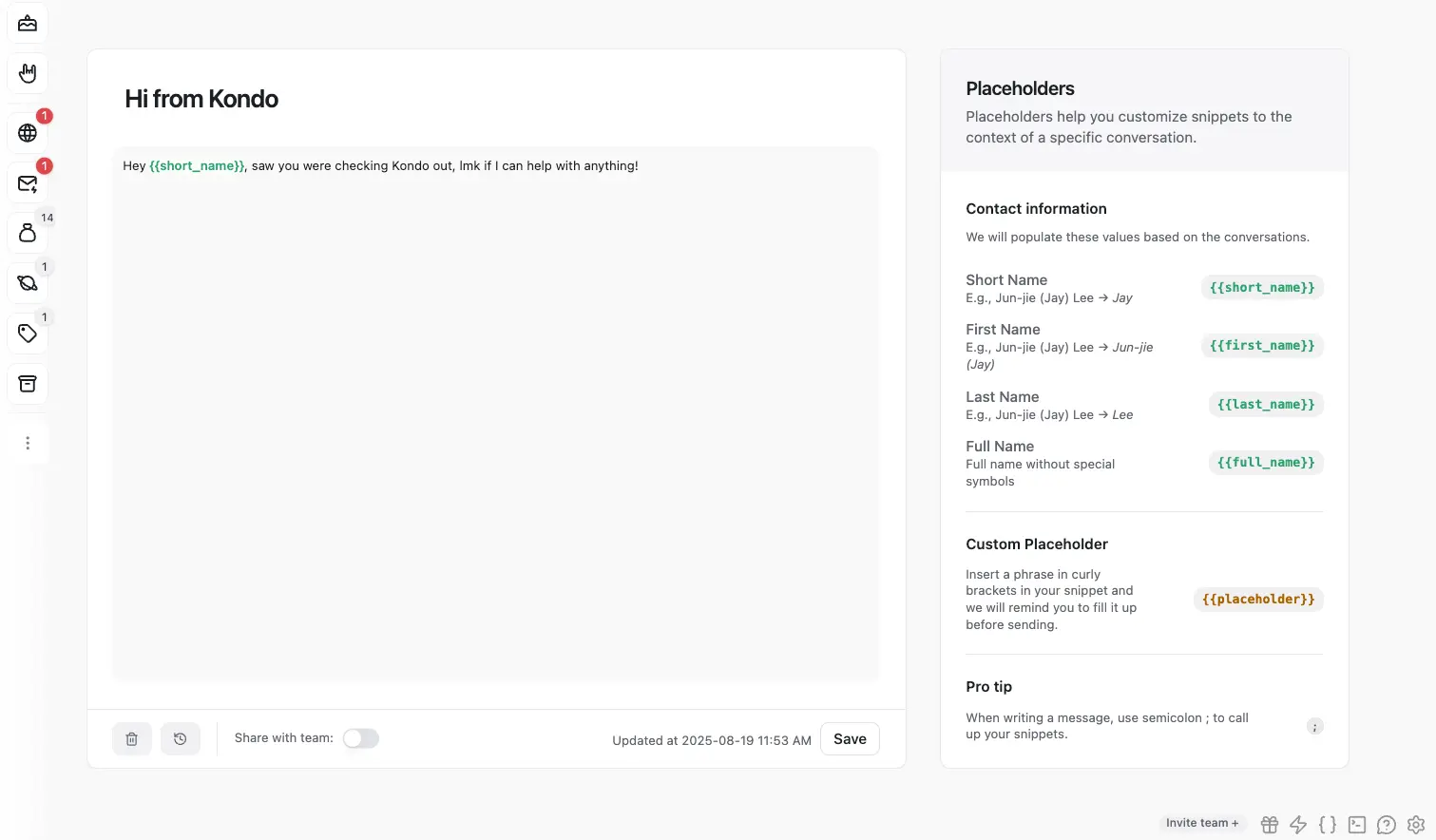
Snippets can fill themselves in based on the chat:
{{short_name}}— Jun-jie (Jay) Lee → Jay{{first_name}}— Jun-jie (Jay) Lee → Jun-jie (Jay){{last_name}}— Jun-jie (Jay) Lee → Lee{{full_name}}— the clean name without special characters
Any other phrase in {{curly_brackets}} becomes a custom placeholder — Kondo reminds you to fill it in before sending.
To insert a snippet, type ; in the text box or click the snippet button.
You can create and edit snippets in the snippet settings: https://app.trykondo.com/snippets
Variables
When creating a snippet, you can use the variables available on the right menu within your template. Kondo fills the name variables for you: {{short_name}}, {{first_name}}, {{last_name}} and {{full_name}}.
Adding a custom placeholder will prompt you to fill up the variable with your own custom text before sending. You can add a custom placeholder by inserting a {{phrase}} in double curly brackets within the template (1–5 words).