Labels
To label a chat in Kondo, click the 'Add labels' button in the right side panel, or use the shortcut L.
Each label you create will have its own separate inbox in the left side bar.
New messages in labelled chats will show up in their own separate inbox, and in the Inbox.
Labels and the Focused inbox
Labelling a chat doesn't remove it from the Inbox. If you'd rather keep labelled chats out of your main view, turn on the Focused inbox from the Organize sidebar menu (it's off by default). Focused hides labelled, archived and sponsored chats, so it only shows what still needs triage.
Customizing labels
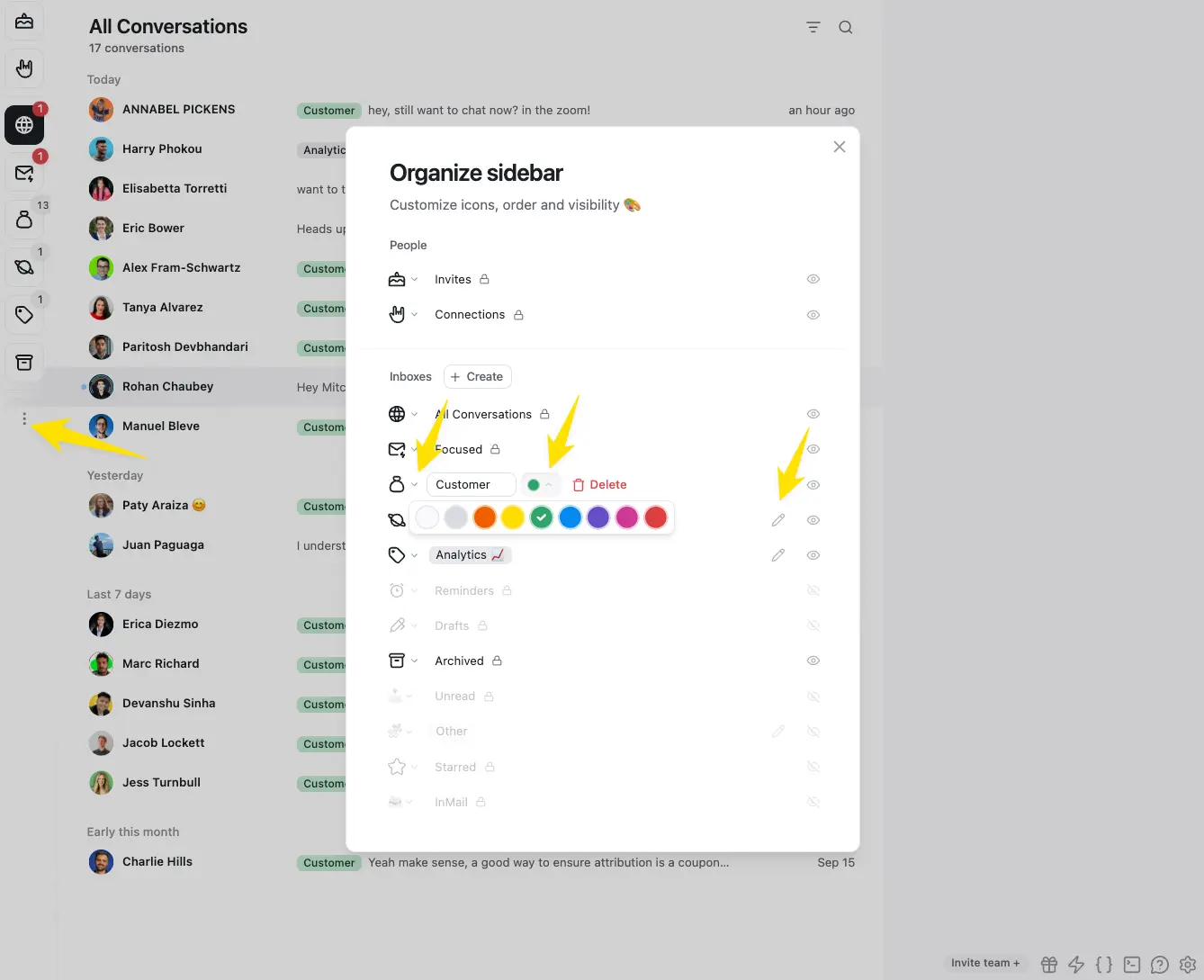
Open the organize sidebar menu on the left to change the icons, name, color, order, and visibility of label inboxes
Multiple labels
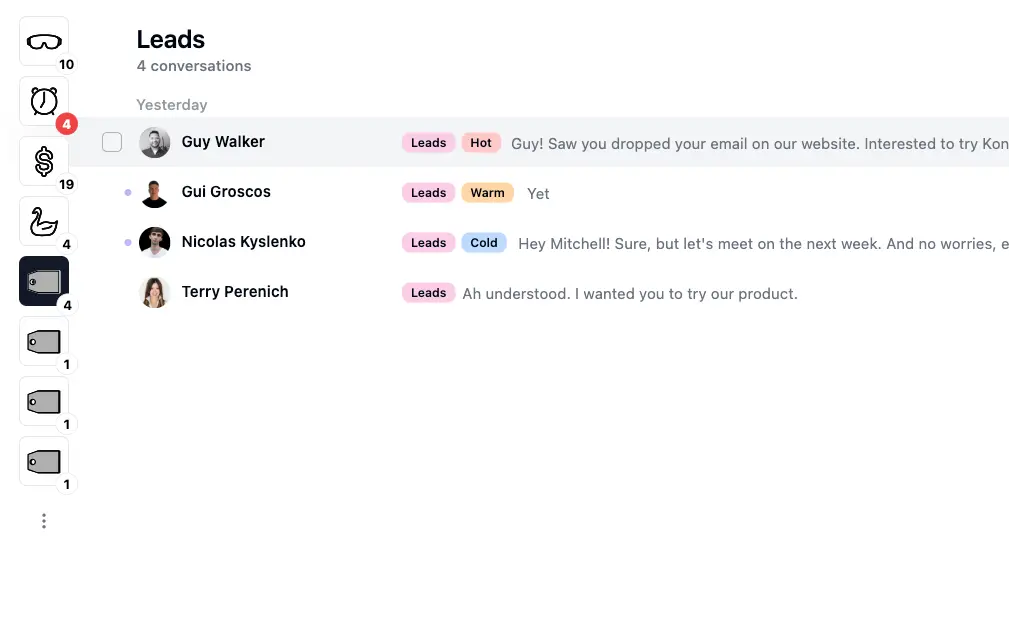
You can add as many labels as you want to a chat. It will show up in each label inbox.
Labels can be used to create a 'group'. For example, you may have Leads, and want to further label them as Hot, Warm, and Cold:
Archiving in a label inbox
After adding chats to a label inbox, you can archive and set reminders on them the same way you would in the main inbox.
Chats will automatically return to the label inbox when you get a new reply or a reminder is due.
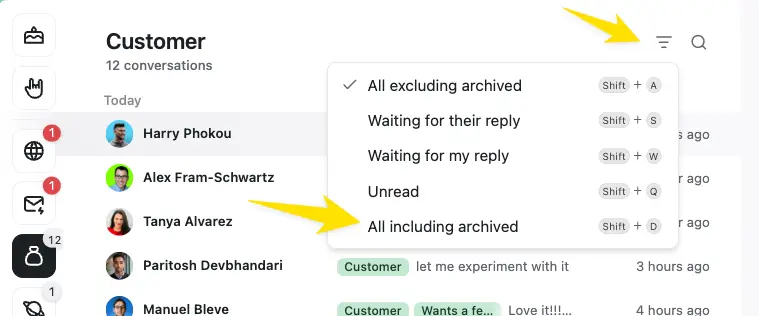
You can also see all chats including those you've archived by changing the filter setting: