Integrations
Notion
Notion integration requires a Business plan to be enabled
Step 1: Create a new Notion database
- Create a new database
- Create one column (any name / type will work)
- Click ‘Share’ and copy URL
Step 2: Paste in Kondo
- go to app.trykondo.com/integrations/new or click on the ⚡ Integrations button in the bottom right menu
- paste the URL
- Click “Connect” and grant access to the database
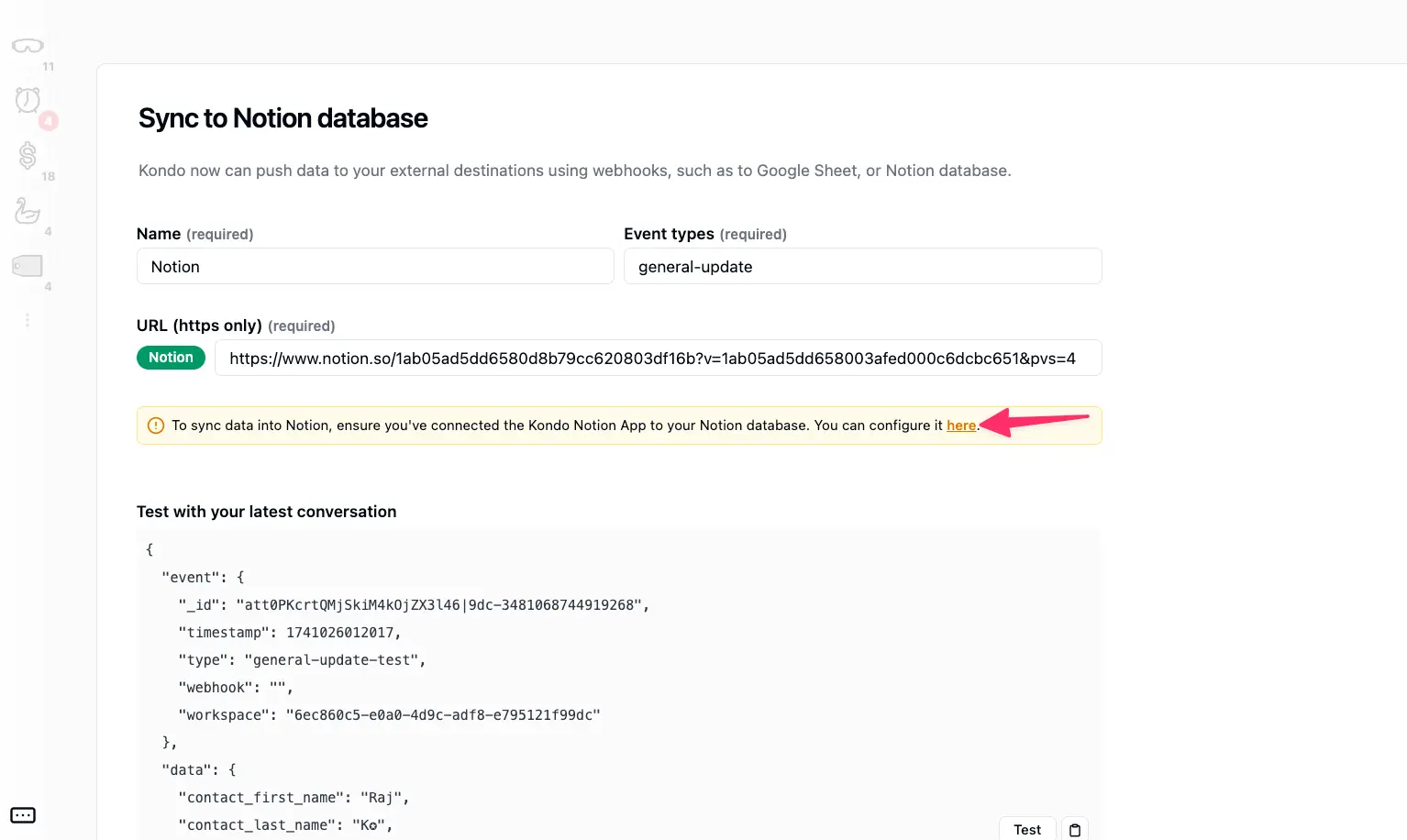
- Select your sync frequency
- Auto-sync labeled: updates the database for labelled chats every time there is a change in Kondo e.g. new messages sent, received, labels or notes updated etc.
- Auto-sync all: same triggers, for every chat
- Manual only: will only update the database upon manual triggering of sync
Step 3: Test then save
Scroll down and click ‘Test then save’
Step 4: Manually trigger a sync
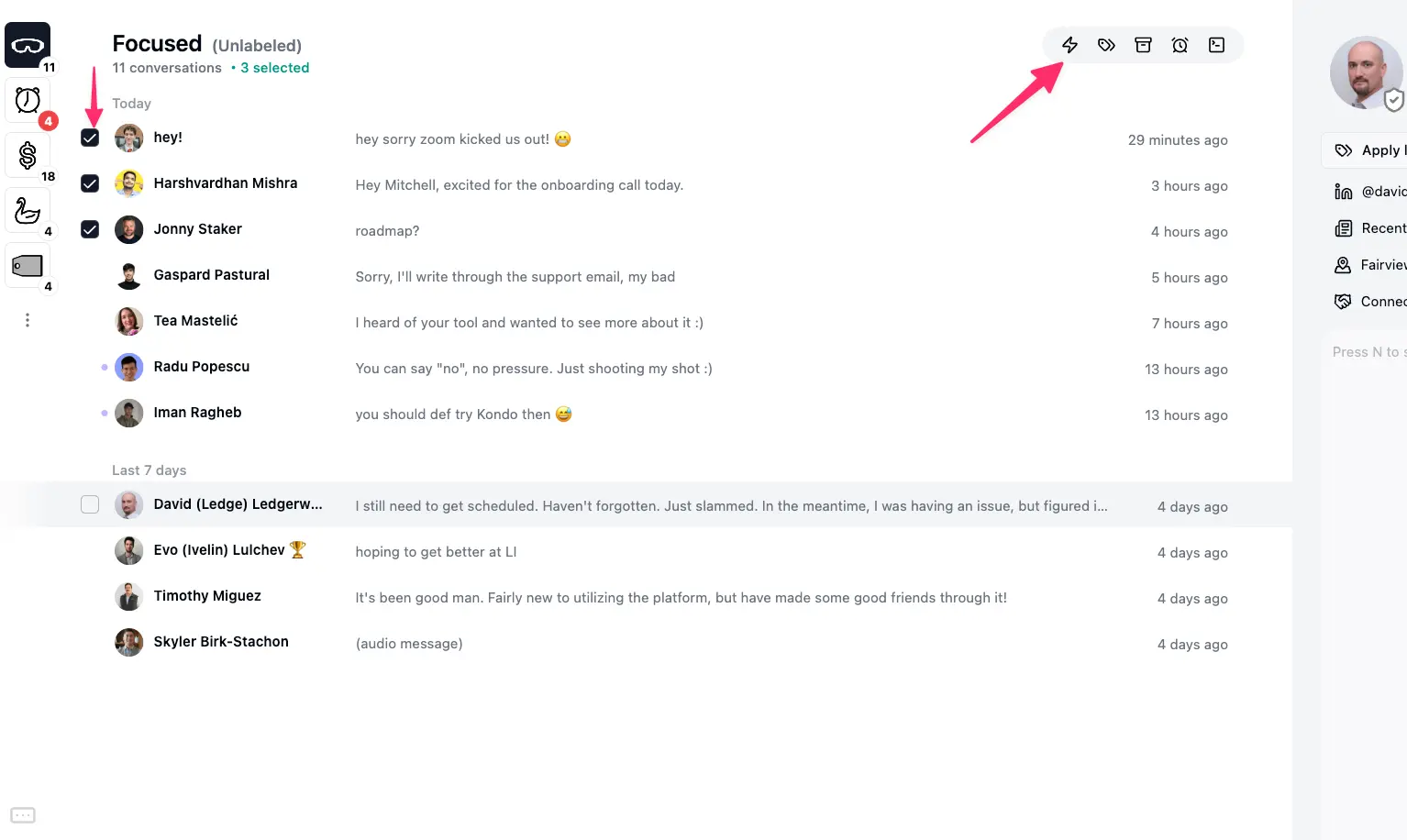
Once you have at least 1 destination set up, you can trigger a sync by selecting a few rows and clicking the ⚡ button or with Cmd + K > Sync