Archive Messages for LinkedIn, WhatsApp and iMessage
Archive moves chats with no pending action out of your inbox and into storage. Nothing is deleted — think shelf, not trash.
How to Archive Messages
To archive a chat, hit "E" or click the archive button. This works when you hover over a chat in the list or when you are within a chat.
When a new message arrives in an archived chat, it restores itself and returns to the top of your inbox.
Where to find archived chats
There are 3 ways to find archived chats
- Using search to find messages will look for all chats, including those in the archive
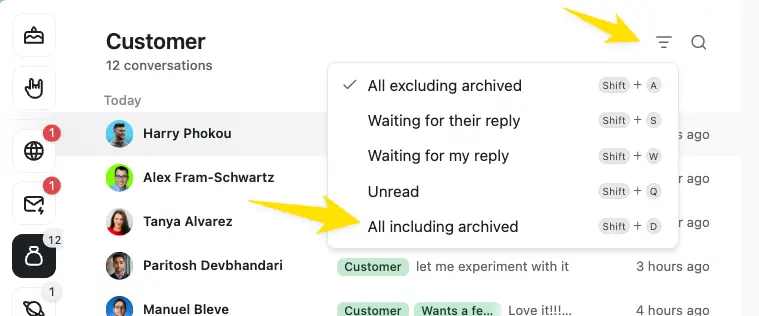
- If you are in a label inbox, you can open the filter to show "All Including Archived"
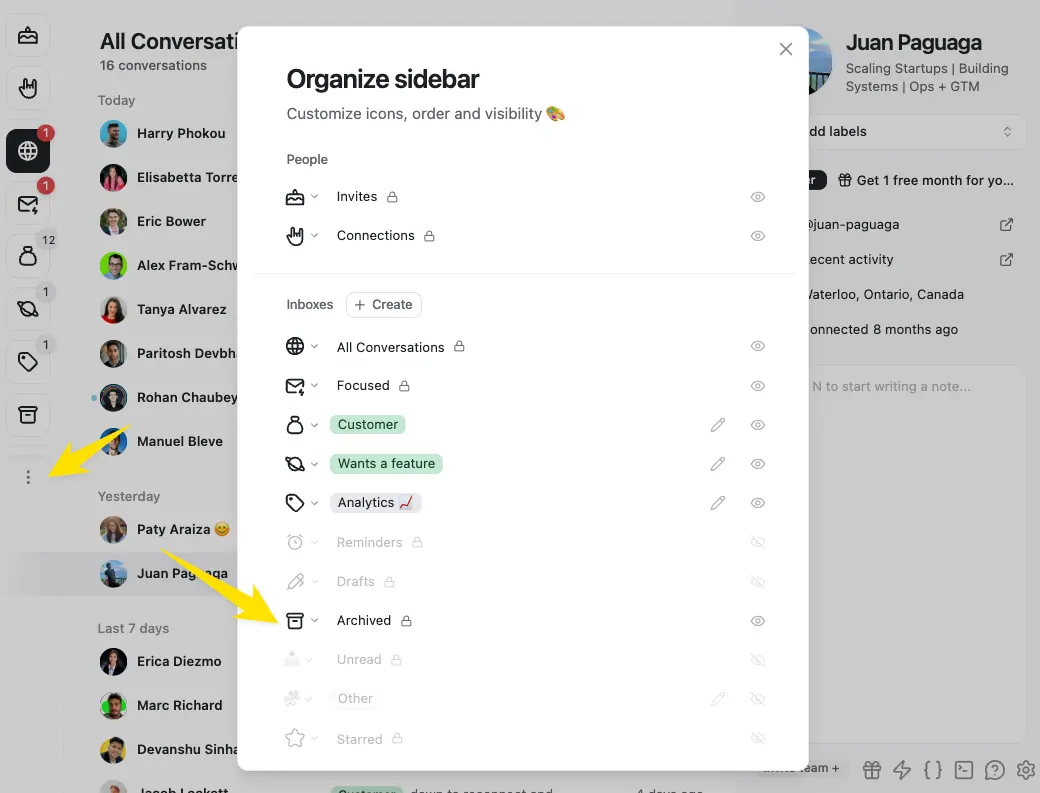
- Open the Archived inbox with the left side bar or useCmd + K -> "Go to Archive"
What happens in LinkedIn when you archive?
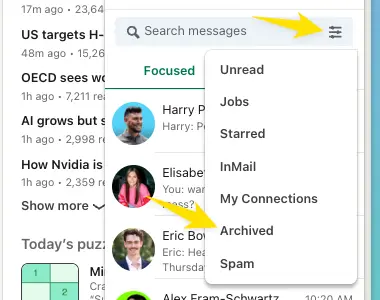
LinkedIn has an archive, and we move chats there when you archive or set a reminder on a chat in Kondo.
They will automatically unarchive in both LinkedIn and Kondo when you get a new message or a reminder is due.
Press E (or Y) on a chat, or [ to archive and jump straight to the next chat. ⌘ + Shift + Enter sends your reply and archives in one move.
WhatsApp has a preference that lets chats stay archived with unread messages. Kondo doesn't respect it — while Kondo is open, it reconciles those chats so a chat is never both archived and unread. For smooth sailing, turn off WhatsApp's Keep chats archived so chats with unread messages leave the archive there too.
How to find your archived WhatsApp chats
- Search covers everything, archived or not.
- The Archive inbox in the sidebar holds all archived chats.
- In any other inbox, switch the filter to Everything (
Shift + D) to include archived chats in place.
Restore archived WhatsApp chat
Press Shift + E on an archived chat to bring it back to your inbox, or select several in the Archive inbox and restore them together.