5 Best Tools to Organize WhatsApp Chats for Personal and Business Messages
Published On November 10, 2026
Summary
- WhatsApp's native Chat Lists, Pin Chat, Star Message, and Archive address most personal inbox clutter at no cost; these features should be exhausted before any third-party purchase.
- Business API costs stack across Meta's per-delivered-message fees, free service messages per number per month (which offset replies, not campaign sends), and platform seat pricing.
- Free-form replies operate only inside the 24-hour service window, and any proactive message requires a Meta-approved template.
- For solopreneurs who require CRM-level organization without the API, Kondo reads WhatsApp on the user's own computer and maintains all three in one local-first inbox with a built-in WhatsApp MCP server for AI-assisted triage.
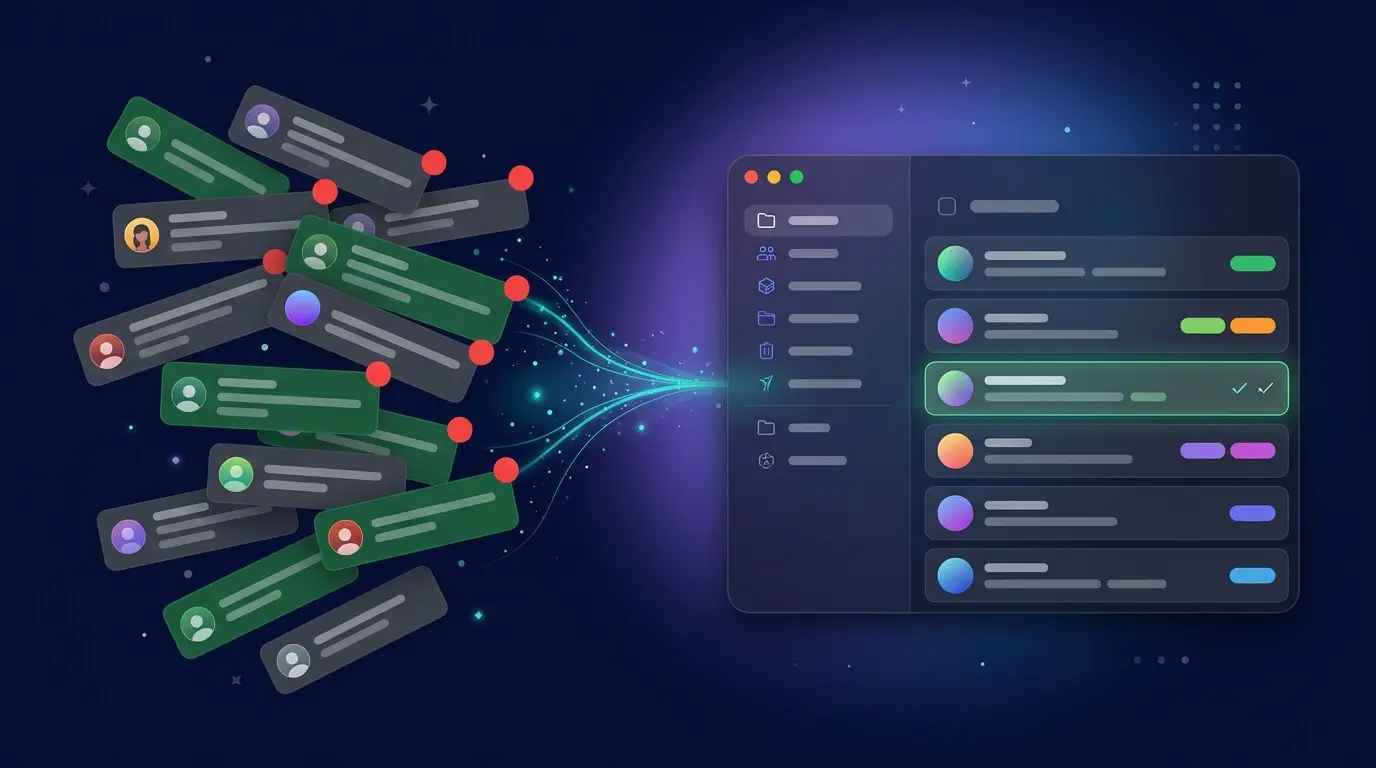
WhatsApp is not engineered for organization. Personal commitments, client follow-ups, family group chats, and payment reminders all arrive in the same scrolling list. The result is a cluttered inbox in which important messages disappear, and the red notification dots become a source of low-grade anxiety.
The problem is compounded when a single number handles both personal and professional life. A client inquiry and a grocery reminder carry identical visual weight in the chat list.
Most guides on how to organize WhatsApp chats default immediately to CRM software, skipping the needs of individuals and solopreneurs entirely. This article covers both paths: tools that operate on top of an existing WhatsApp account without migration, and platforms that replace WhatsApp's native interface for business teams that need automated outbound messaging or WhatsApp embedded directly in a CRM.
1. WhatsApp's Built-in Features (The Free Baseline)
Exhaust WhatsApp’s built-in features before considering a third-party app.
Chat Lists are one of WhatsApp’s most overlooked ways to stay organized. On the Chats tab, swipe down to find four default lists: All, Unread, Favorites, and Groups. You can also create custom lists. The selected list stays active until you switch to another or reopen the app, so you can focus on one category of chats at a time.
Four other built-in tools are worth using regularly:
- Pin Chat keeps up to three important conversations at the top of your inbox.
- Star Message bookmarks useful messages, such as addresses, links, and commitments, so you can find them later.
- Archive Chat hides non-urgent conversations from your main inbox without deleting them. This helps keep the inbox focused on chats that need attention.
- Communities brings related group chats together, making it easier to organize neighbourhood, school, or team conversations.
These tools help you organize and find information, but they don’t turn messages into tasks or reminders. Starring a message won’t remind you to act on it, and archiving a chat won’t prompt a follow-up. If you need to turn messages into actions, WhatsApp’s built-in features are a useful starting point—but they may not be enough on their own.
2: Notes and Task Manager Apps
WhatsApp’s built-in tools can help organize chats, but they don’t turn messages into tasks. A commitment like “Can you send the invoice tomorrow?” can sit in a chat until you remember to act on it.
The handoff method moves that commitment into an app designed for follow-through:
- Find a message that contains an action item.
- Long-press the message and copy its text.
- Open a task or notes app, such as Apple Reminders, Google Keep, Notion, or Todoist.
- Create a task, paste in the message, and set a due date and reminder.
This keeps action items out of a busy inbox and gives them a clear place to live. It costs nothing and doesn’t require a subscription, API access, or connecting a service to your WhatsApp account. The trade-off is that each task must be created manually, so this approach may become tedious if you handle many action items each day. For a moderate volume of messages, it’s a simple, reliable option.
3: Kondo (Privacy-First Desktop Organizer)
For individuals, solopreneurs, and small teams, the WhatsApp Business API can add more cost and complexity than they need. Kondo offers another way to organize conversations.
Many third-party tools process messages on their own servers. Kondo instead reads chats on the user’s computer and stores inbox organization there. Its servers store organizational settings, not message content. Message content is shared only with the AI provider the user chooses to connect.
That setup supports several useful workflows:
- Use your existing WhatsApp account. There’s no need to migrate your number, get message templates approved, or pay Meta per message.
- Manage several channels in one inbox. Kondo combines WhatsApp with LinkedIn and iMessage, with the same DM management workflow across channels.
- Work with an AI assistant. Kondo’s WhatsApp MCP server lets an assistant such as Claude triage chats, summarize conversations, and draft replies. Message content is shared with the AI provider you connect.
- Manage chats from the keyboard. Navigate, archive, snooze, and label conversations without reaching for the mouse.
- Choose what to sync to your CRM. Kondo can sync conversation data with HubSpot, Salesforce, Attio, Notion, Google Sheets, and custom webhooks. You decide which records to send; message and contact data otherwise stay on your computer.
- Share selected records with a team. Synced records can give a small team a shared view in tools it already uses, such as Notion, Google Sheets, or HubSpot. For teams of two to ten people using one WhatsApp number, this may provide the visibility they need without a per-seat shared inbox.
Kondo adds an organizational layer while WhatsApp remains your messaging account. It may suit privacy-conscious users who want CRM-like tools without moving to the WhatsApp Business API.
For details about data handling, review Kondo’s security explanation.
4: Respond.io (Automated Outbound on WhatsApp)
The tools covered so far help manage incoming messages. Outbound messaging is different: it lets a business contact people who haven’t messaged first. This is useful for launch announcements, re-engagement campaigns, appointment reminders, delivery updates, and post-purchase follow-ups. WhatsApp’s standard app doesn’t support sending these messages at scale.
Respond.io is built on the WhatsApp Business API. It supports broadcast campaigns, automated customer journeys, template management, and opt-in tracking. Replies flow into a shared team inbox.
What outbound automation requires
- Approved message templates. Businesses can’t send free-form messages to start a conversation. Each campaign message must be approved by Meta and assigned a category: marketing, utility, or authentication.
- Recorded opt-in. Marketing messages require documented consent. Businesses need to keep that record in their platform.
- Segmentation and pacing. Messages should go to relevant groups, not an entire contact list. Sending a large campaign to a cold audience can hurt a phone number’s quality rating and reduce its allowed sending volume.
- Automated triggers and sequences. A form submission, CRM update, or stalled conversation can start a follow-up without someone sending it manually.
- A place for replies. When someone responds, the reply opens a 24-hour service window. A person needs to be able to pick up the conversation.
Respond.io brings these workflows together, but its subscription is only one part of the cost.
Three cost layers
- Meta’s fee for each delivered message. Since 1 July 2025, Meta has charged per delivered message rather than per conversation. The fee depends mainly on the template category. In North America, the figures cited here are about $0.0250 per marketing message and $0.0034 per utility, authentication, or service message—a roughly sevenfold difference. Correctly classifying a template matters for both compliance and cost. Pricing details
- The free service-message allowance. Since 1 October 2026, each business phone number receives 1,000 free service messages per month, with no rollover. This allowance applies to service replies, not outbound campaigns, so campaign templates are charged from the first delivery. Pricing details
- Respond.io’s platform fee. Pricing depends on Monthly Active Contacts and seat limits. The figures cited here are $79 per month for three seats on the entry plan, $139 for ten seats on Starter, and about $1,239 for 50 seats on Advanced. Seat limits can become a bigger constraint than the per-seat price as a team grows. Respond.io pricing
The total bill can include the platform subscription, higher contact tiers, AI credits, and Meta’s fees for delivered messages. For example, sending a marketing template to 10,000 recipients at $0.0250 per delivery would add $250 in Meta fees. Model costs by campaign before sending.
Respond.io may suit a business with an audience and a clear reason to contact it—such as a product launch, seasonal re-engagement, appointment reminders, or order updates at scale. If the main challenge is keeping up with incoming chats, Kondo (Tool 3) is a better fit and costs less.
5: Full CRM Integration via the WhatsApp Business API
For businesses that need WhatsApp conversations built into their sales or support workflows, the WhatsApp Business API can connect messaging directly to a CRM.
One change affects every provider: the on-premises WhatsApp Business API reached end of life on 23 October 2025. Providers now use Meta’s hosted Cloud API. Their differences are mainly commercial—for example, whether they offer direct Business Solution Provider access or resell the service.
The API enables workflows a shared inbox may not support:
- Automated messages: A CRM event, such as a deal stage change, support ticket update, or form submission, can trigger a WhatsApp message.
- Assigned conversations: Chats can be assigned to specific agents, with resolution times tracked.
- Centralized customer records: WhatsApp interactions can be logged alongside other customer communications in the CRM.
Two rules apply to API messaging:
- The 24-hour service window: Agents can send free-form replies only within 24 hours of the customer’s last message.
- Approved templates: Messages sent outside that window—such as appointment reminders, shipping updates, or re-engagement prompts—must use templates approved by Meta in advance.
This option is best suited to established businesses with sales or support teams already using a CRM. It’s a more advanced step for teams that have confirmed their WhatsApp volume and workflow needs.
How to Choose the Right Tool
Choose based on how many people need access, how much privacy matters, and how many messages require follow-up.
- Managing personal chats: Start with WhatsApp’s built-in features (Tool 1). Use the handoff method (Tool 2) to turn messages that need follow-up into tasks. Most people won’t need more.
- A solopreneur, privacy-conscious user, or team of two to ten: Kondo (Tool 3) offers CRM-style organization and one inbox for WhatsApp, LinkedIn, and iMessage, without Business API costs or number migration. Small teams can share selected records through their existing tools. Kondo’s local-first model also applies to LinkedIn DMs.
- Reaching customers at scale: Campaigns, automated sequences, and high-volume reminders require a Business API platform such as Respond.io (Tool 4). Before committing, estimate the full cost, including template categories, Meta’s message fees, seat limits, and contact volume.
- Connecting WhatsApp to an established CRM: A full API integration (Tool 5) can bring WhatsApp into existing sales and support workflows at scale.
Frequently Asked Questions
How do I organize my WhatsApp chats for free?
Use WhatsApp's built-in Chat Lists, Pin Chat, Star Message, and Archive features first. For action items, copy messages into a free task app like Google Keep or Apple Reminders. These native tools cover most personal users before any paid software is required.
Can I organize WhatsApp chats without a CRM?
Yes. Most personal users and solopreneurs organize chats without a CRM using WhatsApp's native features and the manual handoff method. Kondo offers CRM-level organization on top of an existing account without moving the inbox into a third-party cloud database.
What are WhatsApp Chat Lists and how do they work?
Chat Lists are a built-in WhatsApp filter grouping conversations into All, Unread, Favorites, and Groups, plus custom lists. Swiping down on the Chats tab reveals them. The selected filter stays applied so a user can work through one category at a time.
How do I separate personal and business messages on WhatsApp?
Use custom Chat Lists to group client conversations separately from family and friends, pin up to three priority chats, and archive non-urgent messages. For higher volumes, a local-first organizer like Kondo keeps work and personal channels distinct in one inbox.
What is the best way to organize WhatsApp for business?
Small teams can run one local-first inbox with Kondo across WhatsApp, LinkedIn, and iMessage, backed by synced records in Notion, Google Sheets, or a CRM. A business that needs to message customers proactively — campaigns, reminders, order updates at volume — needs a Business API platform like Respond.io, and every proactive message outside the 24-hour window must use a Meta-approved template. Larger businesses with an existing CRM should integrate via the WhatsApp Business API for automated triggers, conversation ownership, and centralized records.
Does organizing WhatsApp chats require the WhatsApp Business API?
No. Individuals and small teams can organize chats using native features, the handoff method, or tools like Kondo that work over an existing account. The Business API is only needed for high-volume automated outbound and full CRM integration.
Is it worth paying for a WhatsApp organizer tool?
Only if free native features and the handoff method no longer scale. Pay for an outbound platform when you need to message customers at scale with templates and sequences, or for API integration when WhatsApp must connect to a CRM. Individuals and small teams rarely need paid tools.