How to Mark WhatsApp Messages as Unread
Published On November 12, 2026
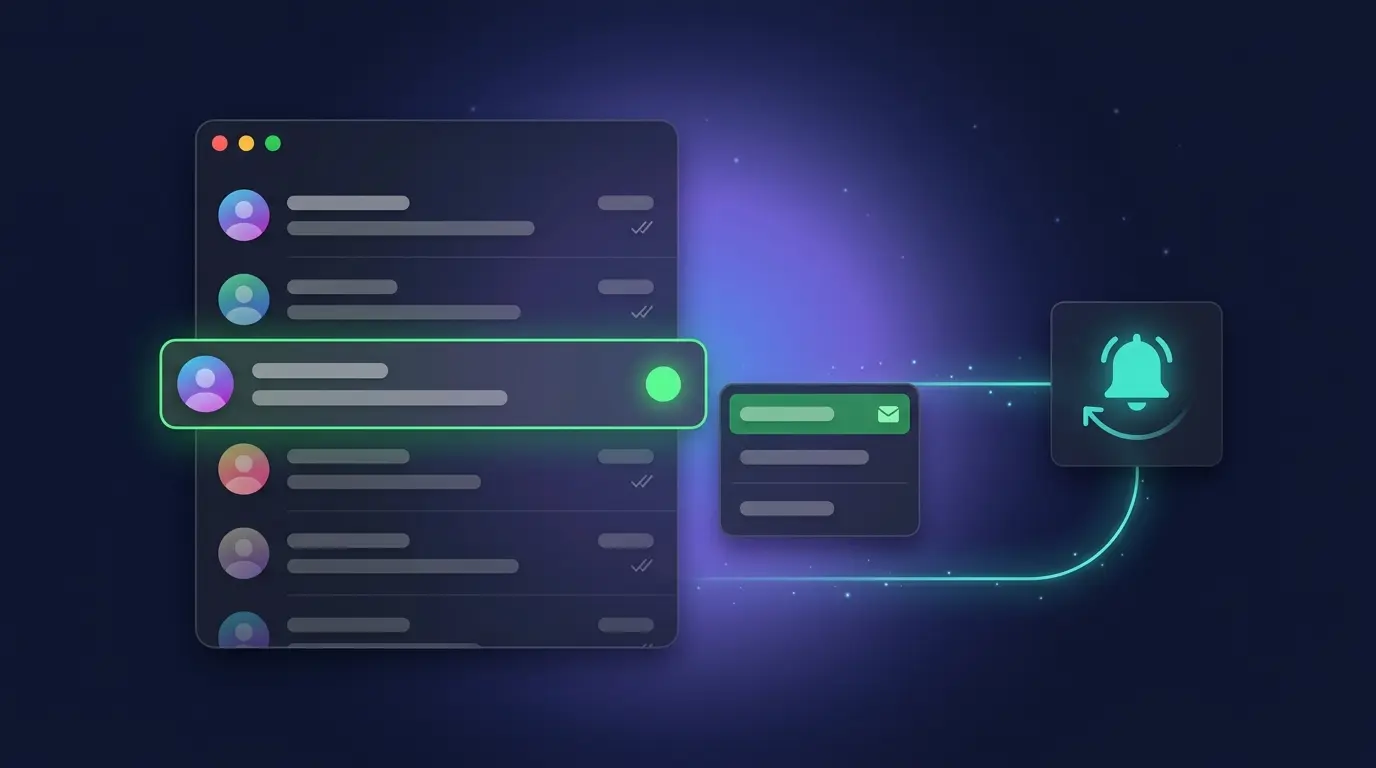
Summary
- Marking a chat as unread is a private, local action that keeps it visible in the user's own list; it does not retract blue ticks or change read receipts.
- On Android, long-press the chat and choose Mark as unread; on iOS, swipe the chat left to right and tap Unread.
- On WhatsApp Web or Desktop, use the context menu or the more reliable shortcut: Ctrl + Alt + Shift + U on Windows or Cmd + Ctrl + Shift + U on Mac.
- Unread dots serve quick personal reminders only; for scheduled follow-ups on WhatsApp, Kondo's Reminders can snooze chats to a specific time.
Two questions arise whenever a user opens a WhatsApp message that cannot be acted on immediately.
The first concerns privacy: whether the sender is notified when a chat is marked as unread. The second concerns workflow: how a user ensures return to the conversation.
Both answers follow.
Marking a chat as unread is a private, local action. It does not remove the blue ticks already visible on the sender's screen. Read receipts and the unread flag are controlled by two completely separate mechanisms. Once blue ticks appear, they cannot be retracted. The "mark as unread" feature only places a visual dot on the chat in the user's own list.
That dot addresses the second question. WhatsApp's built-in unread flag keeps a conversation visible in the chat list so that it does not disappear into the scroll. It functions as a personal reminder, not as a notification to any other party.
With both questions settled, the operational steps for each platform follow.
How to Mark WhatsApp Messages as Unread on Android
- Open WhatsApp and access the main Chats list.
- Identify the conversation to flag.
- Long-press the chat row until it becomes selected.
- Tap the three-dot menu icon in the top-right corner.
- Select Mark as unread from the dropdown.
A green dot appears next to the chat as the visual reminder.
How to Mark WhatsApp Messages as Unread on iOS
- Open WhatsApp and access the Chats tab.
- Locate the chat to flag.
- Swipe the chat row from left to right.
- Tap the blue Unread button that appears.
A blue dot appears next to the chat's timestamp to indicate its flagged status.
How to Mark WhatsApp Messages as Unread on WhatsApp Web and Desktop
The desktop interface provides two reliable methods. Menu options can shift or disappear after app updates; familiarity with both methods maintains coverage.
Method 1: The context menu
- In the chat list, hover the pointer over the target chat.
- A small downward-facing arrow appears on the right side of the row.
- Click it to open the context menu.
- Select Mark as unread.
Method 2: The keyboard shortcut
WhatsApp's own Help Center documents an official shortcut that acts directly on the selected chat. It is the most stable method and bypasses any UI changes to the menu.
- Click once on the chat row to select it without opening the conversation.
- Then press:
- Windows:
Ctrl + Alt + Shift + U - Mac:
Cmd + Ctrl + Shift + U
- Windows:
If the menu option has moved in a recent update, the shortcut remains functional. The additional WhatsApp shortcuts support inbox management without reliance on the visible menu:
Action | Windows | Mac
Archive chat | Ctrl + Alt + Shift + E | Cmd + Ctrl + Shift + E
Mute chat | Ctrl + Alt + Shift + M | Cmd + Ctrl + Shift + M
Pin chat | Ctrl + Alt + Shift + P | Cmd + Ctrl + Shift + P
Bonus: How to Read a WhatsApp Message Without Triggering Blue Ticks
These three methods allow message content to be previewed before a conversation is officially opened.
1. Notification preview
On the lock screen or notification shade, long-press the WhatsApp notification to expand and read the full message text without opening the app. WhatsApp cannot register an open until the conversation is tapped.
The limitation is that this method works only if WhatsApp was closed when the message arrived and the notification has not been dismissed. Reliability has declined on recent iOS versions, where even expanding the notification can trigger a read receipt depending on the app version. The Sun notes this caveat explicitly. It is a best-effort method, not a guarantee.
2. Airplane mode
- When a message arrives, enable Airplane Mode to cut all network connections.
- Open WhatsApp and read the message.
- Fully close the WhatsApp app before reconnecting. On iPhone, swipe it away in the app switcher. On Android, force-stop it from recent apps.
- Turn off Airplane Mode.
This delays the read receipt rather than preventing it. As The Sun's coverage confirms, once WhatsApp is running and the device reconnects to the internet, the ticks turn blue. Force-closing the app first is the critical step.
3. Ask your voice assistant
Ask Siri or Google Assistant to "read my last WhatsApp message." The assistant reads the content aloud without opening the app, which in most cases does not trigger the read receipt. Results vary by operating system version and WhatsApp release.
The Power-User Alternative: From a Passive Dot to a Scheduled Reminder
The green dot keeps a conversation visible. It does not specify when action is required.
For professionals managing high volumes of WhatsApp messages alongside work across other platforms, the native unread flag creates a different problem: a chat list full of green dots remains a list that must be sorted manually every time the app is opened. There is no native way in WhatsApp to snooze a message, apply labels, or separate business conversations from personal ones.
Kondo solves this with a Reminders feature built specifically for this workflow. Instead of marking a message as unread and relying on it remaining visible, the conversation is snoozed to a specific time. The chat disappears from the inbox and reappears at the top exactly when required: tomorrow morning, in three days, or a custom date and time. If the other party replies before the reminder fires, the snooze cancels automatically.
A single keyboard shortcut schedules the conversation rather than flagging it, without menus or clicking.
Beyond individual reminders, Kondo's Labels and Split Inboxes allow categories such as Hot Lead, Client, or Candidate to be applied directly to WhatsApp chats. Each label receives its own dedicated inbox, so high-priority conversations no longer compete with everything else for attention.
Where triage is delegated to an assistant, the WhatsApp MCP Server connects an MCP-compatible client such as Claude or ChatGPT to the user's own WhatsApp session, enabling it to search, summarise, and surface conversations on request. It reads through the local session rather than a cloud copy, and it drafts replies instead of sending them.
Kondo is built to reduce account risk: it runs through the user's own session, keeps messages and contacts on the user's computer, and never automates sending. Read more about how Kondo protects your account.
Closing Note
WhatsApp's built-in mark-as-unread feature does exactly what it says: it keeps a conversation visible as a reminder for the user, with no effect on what the sender sees. Across Android, iOS, and desktop, the steps are straightforward once the relevant interface is known, and the keyboard shortcut on desktop is more reliable than the menu for day-to-day use.
For professionals whose follow-ups carry real stakes, the step up is a system that schedules those follow-ups automatically. Kondo's Reminders feature is that system.
Frequently Asked Questions
Does marking a chat as unread remove the blue ticks for the sender?
No. The unread flag is a private, local reminder that affects only the user's own chat list. Read receipts are controlled by a completely separate system. Once blue ticks appear on the sender's screen, they cannot be retracted, regardless of action on the device.
How do you mark a WhatsApp chat as unread on Android, iPhone, and WhatsApp Web?
On Android, long-press the chat and tap the three-dot menu, then Mark as unread. On iPhone, swipe the chat left to right and tap the blue Unread button. On WhatsApp Web or Desktop, hover the chat, click the downward arrow, and select Mark as unread. A coloured dot confirms the action.
What does the green dot mean when you mark a chat as unread?
The green dot (blue on iOS) is a personal visual flag that replaces the numbered badge on the chat. It keeps the conversation near the top of the list so that return to it is remembered. It is not a message counter, it is not visible to the sender, and it does not signal account activity.
Is there a keyboard shortcut to mark a chat as unread on WhatsApp Web?
Yes. Select a chat with a single click, then press Ctrl + Alt + Shift + U on Windows or Cmd + Ctrl + Shift + U on Mac. WhatsApp's Help Center documents the shortcut, and it is more reliable than the menu option, which sometimes shifts after app updates.
Can you read a WhatsApp message without turning on blue ticks?
Sometimes, but not reliably. The available methods are previewing messages from the notification shade, enabling Airplane Mode before opening, or asking Siri or Google Assistant to read the last message. Each is a best-effort workaround, and none guarantees the sender will not see blue ticks.
Should you turn off read receipts instead of marking chats unread?
Only if the trade-off is accepted. Disabling read receipts is a global setting: the user stops sending them but also stops seeing them from everyone else. Marking a chat as unread is a per-conversation action that leaves read-receipt settings completely untouched.
Why doesn't the unread badge update on the Windows desktop app?
A known inconsistency exists in the Windows desktop client where marking a chat unread does not always refresh the red badge count on the taskbar icon. This is a UI glitch specific to the desktop app, not a sign of an account or sync problem.