How to Connect ChatGPT to LinkedIn with Kondo: A Step-by-Step Guide
Published On November 5, 2026
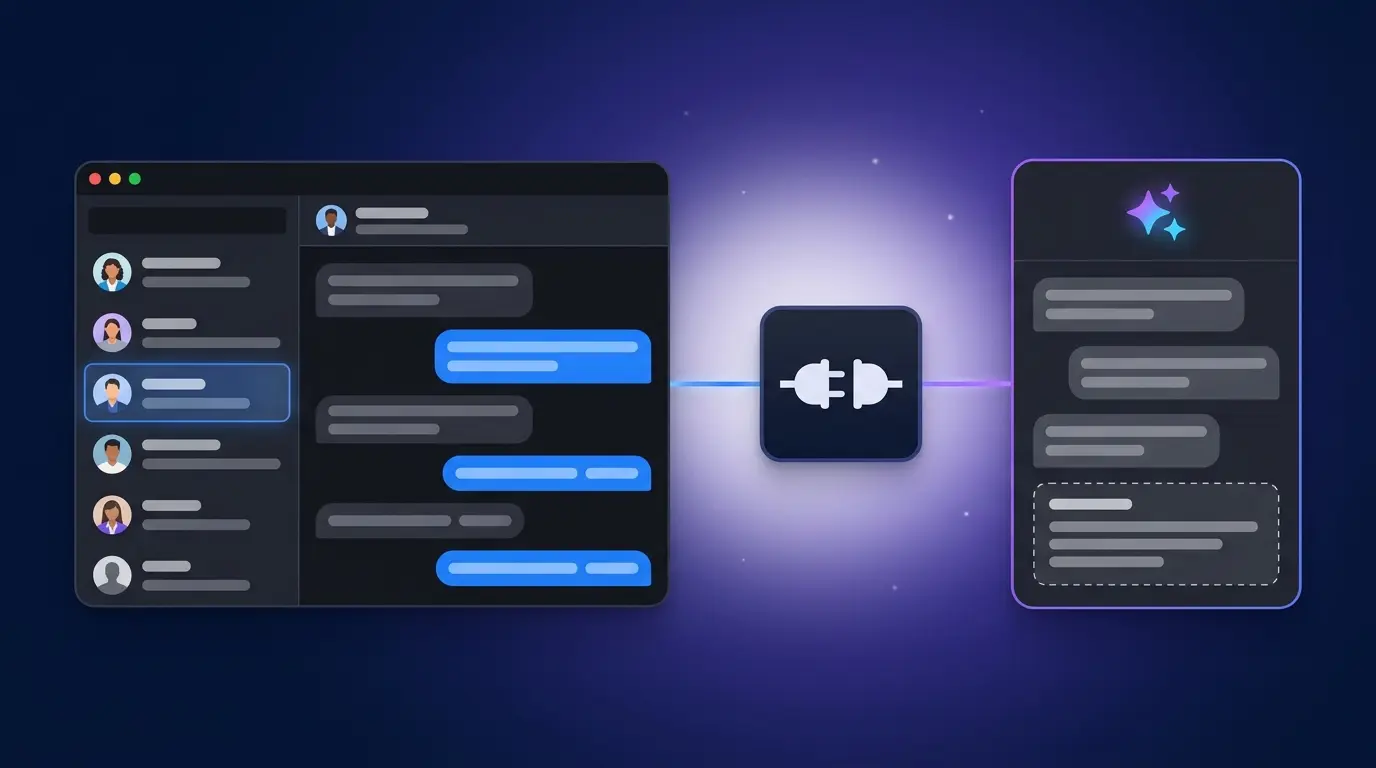
Summary
- ChatGPT cannot access a LinkedIn inbox independently, so threads are copied by hand, context is lost, and follow-ups are missed at any real volume.
- Kondo's MCP server helps you connect ChatGPT to your LinkedIn inbox within minutes.
- Once connected, ChatGPT can list, search, and read threads, surface unanswered messages, apply labels, set reminders, and archive conversations..
- Your LinkedIn password stays private and messages stay on the local machine; only the AI provider connected sees message content, since Kondo reads through the existing browser session. Try Kondo to set it up.
Why Connect ChatGPT to Your LinkedIn Inbox
Without a direct connection, ChatGPT has no view of the inbox. Every step is handled manually: copy the thread, paste it in, obtain a response, return to LinkedIn, and type or paste a reply. No label is applied, no reminder is set, no archive action is available. The AI produces a suggestion with no path to act on it.
With Kondo's MCP server, that changes. ChatGPT reads conversations directly, holds context across a full thread, and takes organizational actions on the operator's behalf. The key constraint is intentional: drafting is the furthest it goes. Every message is approved and sent by you which keeps replies authentic and the workflow under control.
What You Will Need
Before starting, confirm you have the following:
- The Kondo desktop app, with an active Business-tier plan. The MCP server feature is available on that tier. Kondo is a desktop application; this guide does not cover any browser extension.
- A compatible ChatGPT plan. Kondo's documentation specifies that a ChatGPT Business, Enterprise, or Edu plan is required to use custom plugins. ChatGPT Plus or Pro users can connect via Developer Mode, switched on under Settings > Apps > Advanced settings > Developer mode; on workspace plans, an Admin or Owner must enable it for the team first.
Step-by-Step: Connecting ChatGPT to LinkedIn via Kondo
These steps follow Kondo's official MCP connection documentation.
1. Open ChatGPT and go to Plugins
In the ChatGPT interface, navigate to Customize, then select Plugins.
2. Add a custom MCP server
Click Add, then select Add custom MCP server.
3. Configure the Kondo connection
When prompted:
- Name: Enter
Kondo - Server URL: Paste
https://mcp.trykondo.com/mcp
This URL is the correct endpoint for the Kondo desktop app.
4. Complete the OAuth prompts
Follow the on-screen authorization steps to link ChatGPT to your Kondo account. Your LinkedIn credentials are not part of this exchange.
5. Verify the connection in Kondo
Open the browser and go to app.trykondo.com/settings/mcp. The status indicator must show green with the text "listening for commands". If it does not, the connection is not active and ChatGPT cannot reach the inbox.
6. Reload ChatGPT and run a test prompt
Return to ChatGPT and reload the page. Start a new chat with the Kondo plugin enabled. New tools can take a moment to appear after the initial setup.
Run a read-only request to confirm everything is working, such as:
"List my last three LinkedIn conversations that are waiting for a reply from me."
ChatGPT requests confirmation for any action that modifies the inbox, such as saving a draft or applying a label. That confirmation step is by design.
What ChatGPT Can Do in Your LinkedIn Inbox
Once connected, ChatGPT gains a specific set of capabilities through Kondo. The following can be instructed:
Reading and searching
- List recent conversations
- Search conversations by keyword or contact name
- Surface unanswered threads and identify who is waiting on a reply
- Read a full message history to provide context before a response
- Search LinkedIn contacts
Organization
- Apply labels to conversations (for example, "lead" or "needs-follow-up"), mirroring the message labelling available by hand in Kondo
- Set reminders on specific threads, the same idea as a LinkedIn follow-up reminder
- Archive conversations to clear the inbox view
Drafting
- Write a reply based on the conversation history, placed into the LinkedIn message box as a draft
A Lower-Risk Path to LinkedIn AI Integration
Connecting any third-party tool to LinkedIn carries some level of risk, and clarity about what this approach does and does not do is warranted.
What makes this a safer path:
- Messages and contacts stay on the local machine. Kondo reads them through the desktop app rather than routing them through, or storing them in, a third-party cloud session. The only outside service that sees message content is the AI provider you selected for the connection.
- The agent uses the existing browser session. Kondo reads through the LinkedIn session already open in the browser rather than running a separate session from a vendor's cloud. That keeps credentials out of a third party's hands and avoids a pattern that automation detection flags: an unfamiliar login from infrastructure outside the account holder's control.
- LinkedIn credentials are never shared. ChatGPT and Kondo do not receive the LinkedIn password at any point in the connection process.
- Sending is never automated. Tools that run automated follow-up sequences do so by handling the send on the user's behalf, usually from a session they host. Kondo leaves every send to you and every outbound message requires a deliberate action.
No third-party integration tool can offer a guarantee of zero risk, and this one is no different. It should be used with awareness of LinkedIn's platform policies and treated as a productivity tool rather than a replacement for judgment. For a walkthrough of how Kondo is engineered to protect an account, see Is Kondo safe?.
Next Steps
Once the connection is live and the first read-only test passes, you can start using ChatGPT for your workflow, such as triaging your LinkedIn inbox: ask ChatGPT to list threads with no reply in the past week, then work through them one by one. Drafting replies in that order, reviewing each before sending, is a faster workflow than handling the inbox conversation by conversation without support — the same principle behind this LinkedIn inbox management workflow. Pair it with reminders for LinkedIn messages so nothing flagged slips back out of view.
Ready to set it up? Get started with Kondo.
Frequently Asked Questions
What does Kondo's MCP server let ChatGPT do with LinkedIn?
It gives ChatGPT read access to a LinkedIn inbox, so it can list and search conversations, surface threads awaiting a reply, look up contacts, draft replies, apply labels, set reminders, and archive threads. Drafts stay drafts until a human reviews and sends them.
How do I connect ChatGPT to my LinkedIn inbox?
Install the Kondo desktop app, then in ChatGPT go to Customize > Plugins > Add > Add custom MCP server, name it Kondo, and paste https://mcp.trykondo.com/mcp. Complete the OAuth prompts, confirm app.trykondo.com/settings/mcp shows a green "listening for commands" status, reload ChatGPT, and run a read-only test prompt.
Which ChatGPT and Kondo plans do I need?
Kondo's Business tier is required for the MCP server, plus a ChatGPT Business, Enterprise, or Edu plan for custom plugins. ChatGPT Plus and Pro users can connect through Developer Mode, enabled under Settings > Apps > Advanced settings; on workspace plans, an Admin or Owner must enable it.
Why can't ChatGPT see my LinkedIn conversations after setup?
Usually the connection is inactive or the tools have not registered yet. Confirm that app.trykondo.com/settings/mcp shows a green "listening for commands" status, reload ChatGPT, and start a new chat with the Kondo plugin enabled. Tools can take a minute to appear.
Can ChatGPT read my entire LinkedIn inbox?
ChatGPT can read and search the conversations and contacts Kondo accesses through the active browser session, and nothing beyond that scope is visible to it. Messages stay on the local machine rather than on an external server — the only outside service that sees message content is the AI provider connected.