How to Schedule a WhatsApp Message and Not Send the Wrong Thing
Published On November 11, 2026
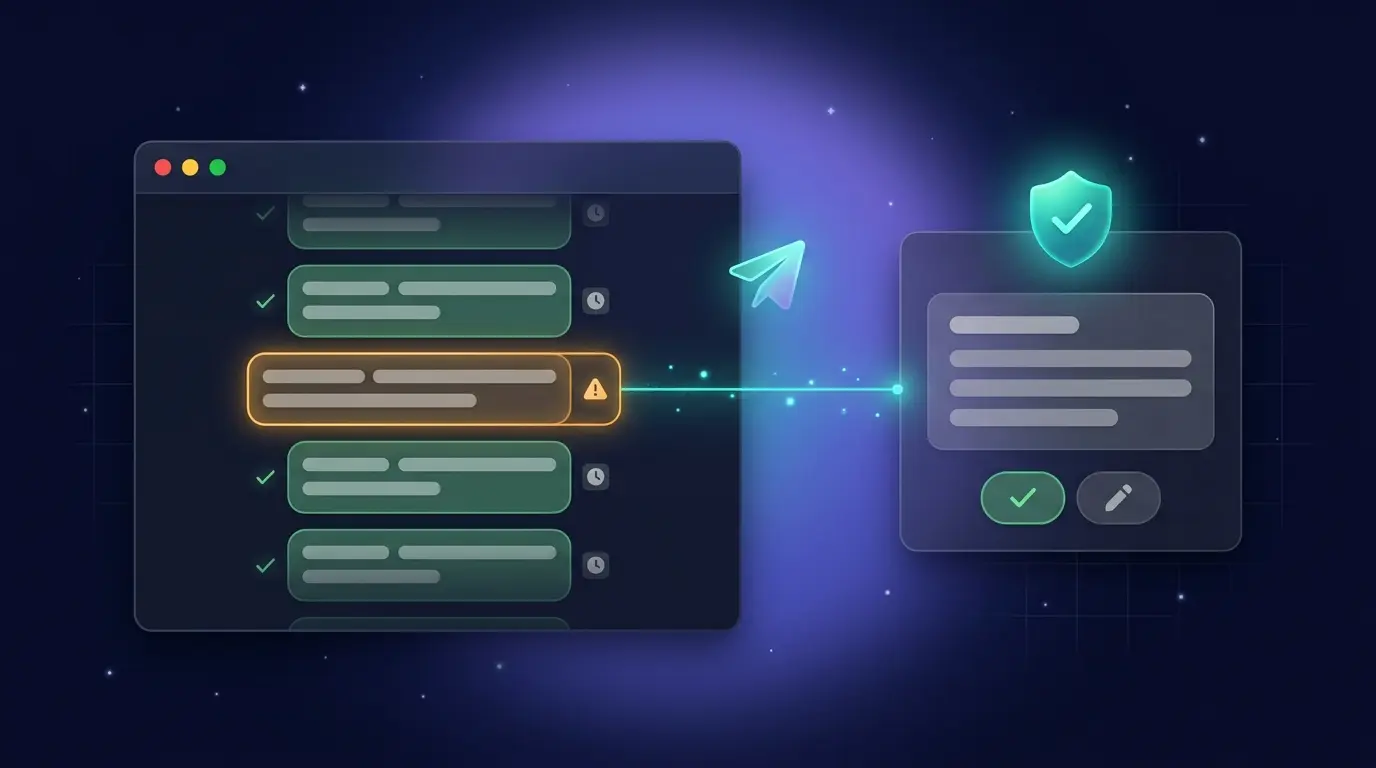
Quick answer: WhatsApp has no native scheduling capability, and the feature only exists in beta. Third-party applications such as SKEDit require broad device permission while the official WhatsApp Business Platform is the only ToS-compliant route for programmatic business sends.If you need the follow-up to be surfaced to you at the right moment, you can use a reminder, not a scheduler feature such as one provided by Kondo.
WhatsApp has no native scheduling feature. There is no clock icon, no "send later" option, and nothing hidden in settings. The one exception is a scheduled-messages feature in limited beta, visible as hidden code strings in a private iOS build. Unless it has been switched on for your account, every route in this article is still a workaround.
Every method described below is a workaround: a third-party application, a phone automation tool, the official Business API, or manual effort. This article covers all four methods, explains the trade-offs of each, while addressing whether scheduling is the appropriate tool for individuals.
Method 1: Use a Third-Party Scheduler App for Android and iPhone
Third-party scheduler applications are the most common workaround for consumers seeking to schedule a WhatsApp message for a birthday, anniversary, or late-night reminder that they do not wish to send in person.
SKEDit (Android)
SKEDit is one of the most established options, with over 5.5 million downloads. It operates by using Android's Accessibility service to drive the official WhatsApp application on a device at a scheduled time. It does not store WhatsApp login credentials.
Pricing is tiered:
- Free: Up to 5 messages in the queue
- Pro: $4.99/month for 30 scheduled messages
- Max: $8.99/month for unlimited messages, drip campaigns, and CSV imports
The limitation: To function, SKEDit requires Accessibility access, notification access, background-run permission, and battery-optimization exemption. Granting these permissions gives the application substantial control over a device. The phone must also be powered on and connected to the internet at the scheduled time. If the operating system closes the application in the background, the message fails — and scheduled messages can be lost without any failure notification.
SKEDit includes an "Ask me before sending" toggle, which means fully unattended sending is not guaranteed on all devices.
Step-by-step for SKEDit on Android:
- Download and install SKEDit from the Google Play Store.
- Create an account in the application.
- Tap the "+" icon on the main screen and select WhatsApp.
- Follow the on-screen prompts to grant Accessibility permissions.
- Select the contact or group to be messaged.
- Compose the message. Files can be attached if needed.
- Set the date and time for sending.
- Decide whether to enable "Ask me before sending." If this option is left off, the screen lock may need to be disabled for the automated send to complete.
- Tap the checkmark to save the scheduled message.
Other applications operating on the same principles include WhatsAuto and Message Auto Sender, both available on Android. They carry the same permission requirements and the same reliability caveats.
Best for: Consumers sending occasional, non-critical personal messages who are comfortable granting Accessibility permissions to a third-party application.
The permission catch: That Accessibility grant is the real cost, not the $4.99. It lets an app read and act on what is on your screen. If the message is for a client rather than a friend, weigh that before installing.
Method 2: Use Your Phone's Built-in Automation for iOS and Android
iPhone: iOS Shortcuts
The Shortcuts application does not reliably send a WhatsApp message unattended. In most configurations, it triggers a notification that requires a tap before the message sends. This is a confirmation step, not a scheduled send. As documented by third-party guides, whether the action completes without interaction depends on the iOS version and what WhatsApp exposes as a Shortcuts action.
A "Time of Day" automation can be created in Shortcuts, with WhatsApp selected as the action, the message composed, and a recipient set. For iPhone users who require a true fire-and-forget schedule, however, a third-party application from the App Store is the more reliable path.
Android: Tasker or MacroDroid
Applications such as Tasker and MacroDroid provide Android users with more capable automation. Tasker can be configured to fire a specific intent at a scheduled time that opens WhatsApp and sends a pre-composed message. This works more reliably than Shortcuts on iOS but requires familiarity with automation concepts: triggers, tasks, and intents. It is not a simple setup for most users.
Best for: Technically comfortable users who require a solution without installing a dedicated scheduling application, and who understand that confirmation may still be required on iPhone.
Method 3: Use the WhatsApp Business Platform (For Businesses Sending at Volume)
This is the only method that is compliant under WhatsApp's Terms of Service for programmatic, proactive sends. It is not a consumer feature, and it is not designed for an individual managing a limited number of client follow-ups.
To use it, a business must:
- Register a phone number with the WhatsApp Business Platform (Cloud API), not the free WhatsApp Business app
- Partner with a Business Solution Provider (BSP) such as Twilio, 360dialog, WATI, or Infobib
- Pay provider fees plus Meta's per-conversation pricing
- Submit message templates for approval by Meta before sending outside a 24-hour customer service window
The free WhatsApp Business application does not support proactive scheduled sends. It can only send automated away messages within its own settings. That distinction matters: businesses that assume the free application covers their scheduling needs will encounter a clear limitation.
Best for: Mid-to-large businesses sending opted-in, programmatic messages at scale — appointment confirmations, shipping notifications, payment alerts. It is built for that volume, not for a freelancer or salesperson managing 20 conversations per week.
Method 4: The Manual Workaround (The One Most People Actually Use)
The method requires no permissions, no third-party application, and no fees, and takes two minutes.
- Write the message now — in a "message yourself" chat on WhatsApp, in a notes application, or anywhere text can be saved.
- Set a phone alarm or calendar reminder for the intended send time. Label it "Send WhatsApp to [Name]."
- When the alarm fires, copy the pre-written text, open WhatsApp, paste it into the correct chat, and send.
The overlooked benefit is that this method forces a review of the conversation before sending. The latest messages are visible, and the message can be adjusted if circumstances have changed.
This is also the honest argument for reminders over schedulers. An alarm brings you back to a live thread and lets you decide. A scheduler fires text you wrote days ago. If you handle more than a handful of conversations, the reminder is the version that does not go stale.
Best for: Anyone who requires a reliable, private, low-risk method to remember to send a message without granting Accessibility permissions to an application they do not fully trust.
Scheduling Sends the Message Written at the Point in Time
For birthday messages and appointment reminders, scheduling is effective. The message is simple, the context is stable, and whether it fires at 8:00 AM or 8:02 AM is immaterial.
However, for professional conversations as client follow-ups, sales outreach, recruiter check-ins, scheduling creates a different kind of problem. A scheduled message fires on schedule, not according to what has actually happened in the conversation since the message was written.
Three failure modes occur in practice:
- The stale follow-up. A "just checking in" message is scheduled for Friday. The prospect replies on Thursday with a new question. The scheduled message fires Friday morning and makes the sender appear inattentive.
- The bad timing. A 9 AM message lands while the contact is dealing with an emergency, is on holiday, or has already told someone they are unavailable. Timing that feels considerate when scheduled can feel intrusive when it arrives.
- The changed context. The message was set three weeks ago. Since then, the deal has advanced, stalled, or closed. The message is now noise.
Scheduling assumes the conversation is static. Direct message conversations are not. For professionals managing dozens of threads at once, the real failure is not a forgotten send; it is lost visibility across 60 conversations.
A Better Approach for Professionals: Reminders, Not Schedulers
Kondo uses Reminders: with a single keyboard shortcut, a conversation disappears from the inbox and resurfaces at the top at the exact time set by the user. When it returns, the full conversation history and the latest messages are visible. The user writes the follow-up then or can use a snippet. This is the same reminder-first workflow we outline in our guide to setting reminders for LinkedIn messages, and it applies equally well to WhatsApp threads.
Snippets allow common message bodies to be pre-written so a routine reply takes seconds. The practical difference: a scheduler sends a message written in the past. A reminder presents the live conversation at the right moment and allows the right message to be written now.
Frequently Asked Questions
Does WhatsApp have a built-in schedule message feature?
No. Neither the standard WhatsApp application nor the WhatsApp Business application has a "send later" option. Code strings for a scheduled messages feature were found in a private iOS beta in February 2026, but the feature has not been released publicly. Every method available today is a workaround.
Why not just set a reminder instead of scheduling the send?
Because the conversation moves after you write the message. A reminder resurfaces the thread at the time you choose and leaves the wording to you, so the follow-up reflects what the contact actually said since. Kondo builds this in for WhatsApp, LinkedIn, and iMessage.
Can you schedule a WhatsApp message for free?
Yes, through two routes. The free tier of SKEDit allows up to 5 pending messages and is ad-supported. The fully free option is the manual method: write a draft, set a phone alarm, and send when it fires. This route has no ads, no permissions, and no limits.
Will scheduling messages get my WhatsApp account banned?
Yes, there is real risk. WhatsApp's terms prohibit bulk and automated messaging, and third-party applications using Accessibility services to send unattended messages fall into a grey area — risk scales with volume. The only ToS-compliant path for business messaging is the official WhatsApp Business Platform.
Can you schedule WhatsApp messages on iPhone?
Options are limited. The iOS Shortcuts application can trigger a WhatsApp action at a set time, but usually requires a tap confirmation before sending — not a true unattended scheduler. A dedicated scheduler from the App Store is more reliable, with the same permission and reliability caveats as on Android.
Can you schedule WhatsApp messages on Android?
Yes, with caveats. Applications such as SKEDit use Android's Accessibility service to send at a set time, but require broad permissions and a phone that remains online. Tasker or MacroDroid can also automate sends, but demand a technical setup.
What is the best way to schedule WhatsApp Business messages?
For opted-in messaging at scale, the official WhatsApp Business Platform (Cloud API) is used via a Business Solution Provider such as Twilio or WATI. The free WhatsApp Business application cannot schedule proactive sends — only away messages. It is not built for individual client follow-ups.
What's the alternative if I keep forgetting to follow up?
Rather than automating the send, automate the reminder to engage. Kondo resurfaces conversations at the right time with full context intact, so the follow-up reflects the current state of the thread rather than a message that may no longer apply. For more on building a repeatable follow-up habit, see Automate Lead Follow-Up.