How to Connect ChatGPT to WhatsApp using Kondo MCP
Published On November 5, 2026
Summary
- You can connect ChatGPT to your WhatsApp and setup only takes minutes using the desktop app.
- A compatible plan is required: ChatGPT Plus, Pro, Business, Enterprise, or Edu; Plus and Pro operate through Developer Mode for personal use only, while workspace plans can publish to a team.
- ChatGPT can read full WhatsApp histories, search conversations, surface unanswered chats, apply labels, set reminders, archive threads, and prepare draft replies but it never sends a message. Every reply it writes remains a draft until the user reviews and sends it personally.
- Messages and contacts stay on the user's computer, only OpenAI processes content when drafting or summarising, and Kondo's WhatsApp MCP server provides the secure desktop bridge.
For businesses, platforms, and enterprise teams, ChatGPT has no native visibility into a WhatsApp inbox. To allow your AI agent to draft a reply or summarising a thread, messages must be copied manually, pasted into ChatGPT, and the surrounding context is lost in the process. The workflow functions, but it is slow and incomplete.
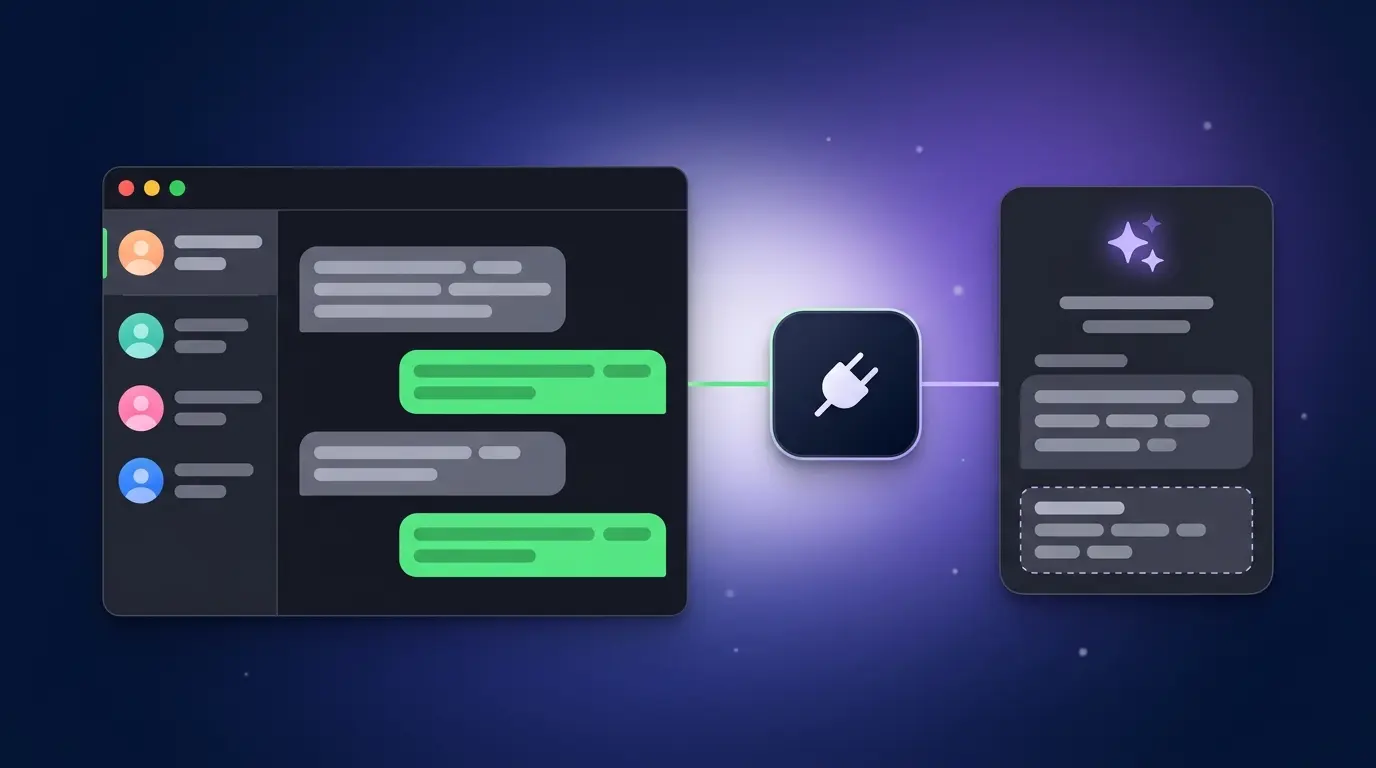
Kondo's WhatsApp MCP server changes that. Its desktop app creates a purpose-built secure bridge that gives ChatGPT read access to WhatsApp conversations and permits actions — drafting replies, applying labels, setting reminders, archiving chats — while keeping the user in control of every, never allowing agents to send messages on the user's behalf.
This guide documents how to connect ChatGPT to WhatsApp using Kondo, what the integration can do, and where messages and credentials reside.
Why connect ChatGPT to WhatsApp?
The manual workflow carries a material operational cost. When a thread is copied into ChatGPT, the history that makes the reply useful is stripped out. ChatGPT does not know who the person is, what was discussed last week, or which messages have not yet been answered. The result is a generic draft requiring substantial rewriting.
A direct connection removes that friction. With Kondo operating as the bridge, ChatGPT can:
- Read full conversation histories, including transcripts of voice notes
- Surface unread or unanswered chats across the entire inbox
- Search conversations by contact name, keyword, or date
- Apply labels, set follow-up reminders, and archive threads
- Prepare a draft reply that sits in WhatsApp awaiting review
What you need before you start
A compatible ChatGPT plan
The MCP server capability that powers this connection is available on:
- ChatGPT Business, Enterprise, or Edu plans (full workspace publishing included)
- ChatGPT Plus or Pro via Developer Mode (personal use only; cannot publish to a workspace)
Where a Plus or Pro account sits inside a workspace, an Admin or Owner must first enable Developer Mode. The path is Settings > Apps > Advanced settings > Developer mode and the setting must be enabled before continuing.
The Kondo Desktop App
Install the Kondo desktop app. The steps below apply to the desktop app specifically. The server URL differs from Kondo's browser extension; the URL in Step 2 is the required endpoint.
How to connect ChatGPT to WhatsApp: step-by-step
The complete connection process is documented in Kondo's official MCP setup guide. The steps below follow that guide exactly.
Step 1: Open the plugin settings in ChatGPT
In ChatGPT, navigate to Customize > Plugins. Select Add, then Add custom MCP server.
Step 2: Enter the Kondo server details
Two fields are required:
- Name: Enter
Kondo - MCP Server URL: Enter
https://mcp.trykondo.com/mcp
This URL is specific to the Kondo Desktop App. The extension URL (https://relay.trykondo.com/mcp) is not applicable here.
Step 3: Complete the OAuth prompts
Follow the on-screen prompts to authorise the connection. This links the Kondo account to ChatGPT without sharing WhatsApp login credentials with either service; the agent never receives them.
Step 4: Confirm the connection is active
Open app.trykondo.com/settings/mcp in a browser. The status indicator must show green with the label "listening for commands". If it does not, confirm that the Kondo desktop app is running and repeat Step 3.
Step 5: Test with a read-only request
Return to ChatGPT and reload the conversation. The Kondo tools require a moment to appear. Once loaded, run a simple read-only prompt to confirm the connection:
Using Kondo, show me my last 3 unanswered WhatsApp chats.
ChatGPT queries the inbox through Kondo and returns the results. No messages are modified during this step.
For workspace admins: publishing Kondo to your team
On Business, Enterprise, or Edu plans, an Admin or Owner can publish the integration for other team members from Workspace Settings > Apps. Select the Drafts tab, locate the Kondo app, and select Publish.
Points to note before publishing:
- ChatGPT displays safety warnings during this step because Kondo includes write actions such as archiving and labelling. This behaviour is expected.
- On Business plans, a published app cannot be updated. Any configuration change requires deletion, recreation, and republication.
- Enterprise and Edu plans support in-place updates without republishing.
What ChatGPT can do inside your WhatsApp inbox
Once the connection is active, ChatGPT accepts prompts in plain language. ChatGPT requests user confirmation before executing any action that changes the inbox. Reading and searching do not require confirmation; drafting, labelling, archiving, and setting reminders do.
Reading and searching
- List unread conversations
- Find unanswered messages
- Search by contact name, keyword, or date range
- Read full message histories, including voice note transcripts
Organising
- Apply or remove labels on any conversation
- Archive threads individually or in bulk
- Set reminders to follow up with a specific contact at a named time
Drafting replies
ChatGPT reads the conversation context and prepares a draft. The draft is saved to WhatsApp but not sent. The user reviews it, edits it if needed, and sends it personally. The AI assistant for WhatsApp never completes that final step on the user's behalf.
Example prompts that work with this setup:
- Summarise my conversation with Marco and draft a reply confirming the meeting.
- Apply the label "Awaiting" to every chat I have not replied to in the last 48 hours.
- Remind me to follow up with Sarah tomorrow at 9 am.
The same setup works for LinkedIn
If you operate on multiple platforms, Kondo also operates an MCP server for LinkedIn, so ChatGPT can read and search LinkedIn DMs, apply labels, and draft replies in the same manner.
How your WhatsApp data stays private
Earlier WhatsApp integrations handled this area poorly, and concerns about sharing private or work-confidential conversations are entirely reasonable.
Kondo's architecture addresses the issue directly:
- Messages and contacts stay on the user's computer. The Kondo desktop app reads WhatsApp data locally. It does not upload conversations to Kondo's servers.
- Only the chosen AI provider sees message content. When ChatGPT processes a message to draft a reply or produce a summary, that content goes to OpenAI — the same provider used when ChatGPT is opened in a browser. No additional third party receives it.
- Credentials are never shared. The OAuth flow links the Kondo account to ChatGPT. The WhatsApp login does not pass through that link.
- Nothing is sent on the user's behalf. Kondo's MCP server has no send action. Everything the agent writes remains a draft until the user reviews and sends it personally.
This architecture directly addresses a common concern about WhatsApp AI integrations: discomfort with tools that appear to act on the user's behalf without a clear review step. Here, the review step is structural, not optional. For the full breakdown of how Kondo keeps an account safe, read Is Kondo safe?.