Limitations of LinkedIn Sales Navigator Integration with HubSpot CRM for Message Synchronization
Published On November 3, 2026
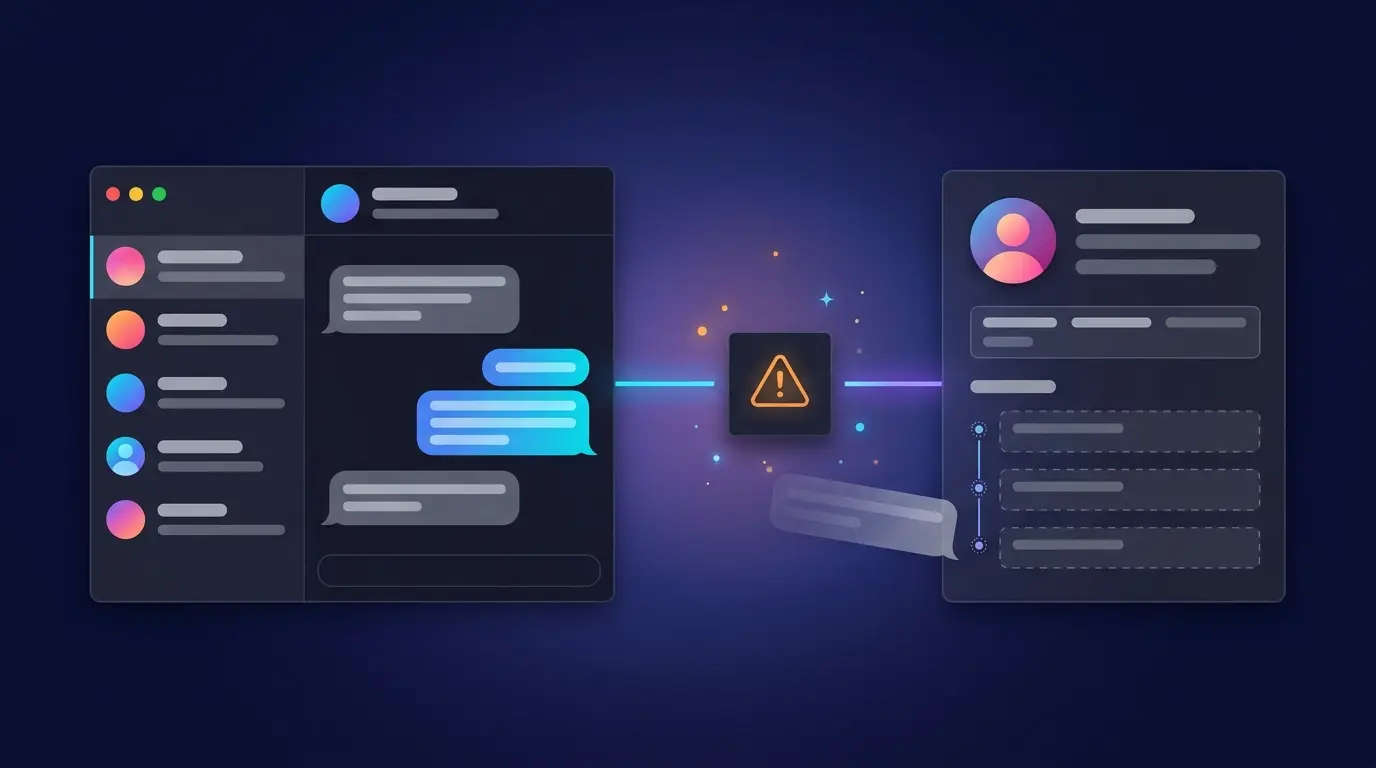
Summary
- The native “integration” comprises two separate applications: the Sales Navigator sidebar card, which performs no message synchronization, and LinkedIn CRM Sync, the only application that logs activity.
- Both applications require HubSpot Sales Hub Professional or Enterprise and LinkedIn Sales Navigator Advanced Plus on every seat, at enterprise-level pricing that LinkedIn does not publish.
- LinkedIn routes replies to connection request notes to the regular LinkedIn Inbox, which CRM Sync cannot read; the most common sales development replies therefore never reach HubSpot.
- CRM Sync operates forward-only, with no historical backfill, all-or-nothing field mapping, a structural risk of duplicate contacts and no bulk lead list import.
- For complete conversation logging, Kondo reads both the Sales Navigator and regular LinkedIn inboxes and syncs the full conversation to HubSpot.
Sales organisations adopting the HubSpot LinkedIn Sales Navigator integration typically anticipate a single outcome: LinkedIn conversations logged automatically to the contact timeline, creating one source of truth for all outreach. The native integration does not deliver that outcome. A precise understanding of where it falls short, and why, is what allows revenue operations leaders to design workflows that account for the gaps rather than discover them mid-quarter.
The limitations fall into four distinct categories: a two-application architecture that is widely misunderstood, strict subscription tier requirements that make full functionality expensive, LinkedIn's own message routing rules that prevent many replies from reaching HubSpot, and structural constraints inside the sync application itself.
The Integration Is Two Separate Apps
Most teams install one application and assume the configuration is complete.
What practitioners refer to as HubSpot and LinkedIn Sales Navigator integration is in fact two independent applications, each with its own deployment process and its own documented capabilities:
- LinkedIn Sales Navigator — the sidebar card that renders on HubSpot contact and company records.
- LinkedIn CRM Sync — a separate back-end application responsible for bidirectional data synchronization and activity logging.
HubSpot maintains two separate knowledge base articles for these applications because they are installed, configured and managed independently. A team that installs only the sidebar application and then waits for message sync activity will see nothing. The sidebar application logs no activity. That function belongs entirely to the CRM Sync application, and omission of the second installation is the most common reason teams conclude the integration is broken when it has never been fully configured.
The Sidebar App Does Not Sync Messages
The LinkedIn Sales Navigator sidebar card is a prospecting instrument, not a data synchronization tool.
According to HubSpot's documentation, the sidebar application provides:
- LinkedIn profile data for contacts: job title, company, tenure in role, location and industry
- LinkedIn company data: industry, size, and location
- Action links including "Save in Sales Navigator," icebreakers, "Get introduced," and related leads
- The ability to compose and send new InMails directly from a HubSpot contact or company record
What it does not provide is any form of message or conversation synchronization. Existing InMail threads, connection request replies and LinkedIn message history do not appear on the HubSpot contact timeline through the sidebar application. HubSpot's own documentation for this integration contains no reference to message synchronization, which confirms the absence as a product boundary rather than a setup oversight.
The sidebar card operates as a window into LinkedIn data from inside HubSpot. Data flows in one direction, for display purposes only, and there is no equivalent surface for the conversation history a sales team has already built on LinkedIn.
Full Functionality Requires Enterprise-Level Subscriptions on Both Platforms
Teams that attempt to activate the integration on lower-tier plans encounter a “subscription not found” or “subscription not supported” error. This is not a configuration fault. It is a hard tier requirement enforced by both platforms.
HubSpot's documentation confirms that both integrations require:
- A Sales Hub Professional or Sales Hub Enterprise seat on the HubSpot side
- A LinkedIn Sales Navigator Advanced Plus account on the LinkedIn side
Sales Hub Starter does not qualify. Sales Navigator Core and Sales Navigator Advanced do not qualify. A paying customer on either lower tier will see the integration fail regardless of configuration.
LinkedIn Sales Navigator Advanced Plus carries custom, enterprise-level pricing that LinkedIn does not publish. Every individual who requires the integration needs both the qualifying HubSpot seat and the qualifying Sales Navigator license. For a five-person sales team, the combined annual cost of these two subscriptions routinely reaches a scale that warrants formal budget approval before implementation begins.
LinkedIn's Message Routing Rules Silently Block Most Replies
Even with both applications installed and the correct subscriptions active, a large share of inbound replies never appears in HubSpot. This is not a defect. It is a consequence of how LinkedIn routes messages between two separate inboxes.
LinkedIn's own help documentation explains that Sales Navigator users maintain two distinct inboxes: the Sales Navigator Inbox and the regular LinkedIn Inbox. Delivery of a reply depends on the inbox from which the original message was sent.
The routing rule operates as follows:
- An InMail sent from within Sales Navigator generates a thread that remains in the Sales Navigator Inbox. Replies to that InMail route back to the same inbox. The CRM Sync integration reads this inbox and logs the activity to HubSpot.
- A connection request sent with a note, where the prospect accepts and replies, routes that reply to the regular LinkedIn Inbox. The CRM Sync integration cannot read the regular LinkedIn Inbox.
The consequence is that replies from connection requests are invisible to the HubSpot integration by design. This disproportionately affects standard sales development workflows, in which connection requests are a primary outreach motion. Teams using the channel as their principal outbound approach find that accepted connections and their subsequent replies produce no logged activity in HubSpot, regardless of configuration.
InMail activity may appear to log correctly while connection request replies vanish entirely. Sales operations teams observing this pattern generally assume a configuration fault. The actual cause is LinkedIn's inbox architecture, which is also why combining the Sales Navigator and LinkedIn inboxes is the only reliable route to a prospect's full thread history.
Additional Data Sync Limitations Within LinkedIn CRM Sync
The LinkedIn CRM Sync app introduces further constraints that revenue operations teams must account for before deployment.
No historical backfill. CRM Sync operates on a forward-only basis. It logs new and updated data from the point of connection onward. Activity and record data that existed in Sales Navigator before the application was installed is not retrievable through the integration. Teams deploying the tool mid-pipeline find their existing deal history absent from HubSpot.
Duplicate contact risk. The two applications use different matching logic. The sidebar card matches contacts against HubSpot records using first name, last name, email address, company and job title. CRM Sync creates new HubSpot contacts from Sales Navigator leads. Where a contact's LinkedIn email differs from the work email already stored in HubSpot, the result is a duplicate record rather than a match. Data mapping mismatches of this kind can corrupt contact and company data over time without producing an immediate, visible error.
All-or-nothing field mapping. HubSpot's documentation states directly: “Editing the data sync is not possible. All mapped fields are either set to sync or not sync.” A revenue operations team cannot disable synchronization for a single problematic field while keeping the remainder active. The only available action is to uninstall the entire application, which disrupts all active sync activity. Teams that require field-level control typically pair HubSpot with a dedicated LinkedIn CRM sync layer that maps properties per object.
Single environment constraint. One HubSpot account connects to one Sales Navigator environment. Organizations running multiple Sales Navigator seats across separate contract structures cannot consolidate activity into a single HubSpot instance through the native integration.
A Safer Path to Complete Conversation Logging
For teams that require every LinkedIn conversation in HubSpot without the enterprise tier requirements, Kondo reads both the Sales Navigator and regular LinkedIn inboxes through the LinkedIn session already open in the browser. Messages and contacts remain on the local machine: no second session on third-party servers, and no third party holding message history. The only outside service that sees message content is the AI provider the team chooses to connect, and every message stays with the operator to review and send. Labels, reminders, and CRM sync all run from Kondo's own interface, with keyboard shortcuts that allow navigation, archiving, snoozing, and labeling without leaving the keyboard. See how Kondo keeps your account safe.
For a closer look at how that sync works in practice, see how to sync LinkedIn DMs to Salesforce and HubSpot, plus the HubSpot LinkedIn integration tips that keep contact records clean once messages begin flowing in.
Bulk List Import Is Not Supported
A common expectation among teams evaluating this integration is the ability to import saved lead lists from Sales Navigator directly into HubSpot. HubSpot's documentation is explicit: "it is not possible to import contacts from LinkedIn using the integration."
The intended workflow is per-record. Individual contacts are synced or matched as sales representatives interact with them through the sidebar card, or as CRM Sync processes updates. There is no batch import mechanism, no list-level operation and no workflow automation that replicates a bulk export of a Sales Navigator lead list into HubSpot contacts.
Setting Realistic Expectations Before Committing
The native HubSpot LinkedIn Sales Navigator integration functions as a prospecting instrument embedded in HubSpot, not as a comprehensive message synchronization layer. Teams evaluating it against a requirement for complete conversation capture should account for each of the following before committing to the subscription cost:
- Message synchronization is not a feature of the sidebar application and is not available through either integration for most common reply scenarios.
- The CRM Sync app requires Sales Hub Professional or Enterprise and Sales Navigator Advanced Plus on every seat, at enterprise-level pricing.
- LinkedIn's inbox routing rules prevent connection request replies from reaching the integration, regardless of configuration.
- CRM Sync carries no historical backfill, no granular field mapping control, and a structural risk of duplicate contact creation.
- Bulk importing lead lists from Sales Navigator into HubSpot is not possible through either application.
Revenue operations and sales operations leaders evaluating this integration should test it explicitly against the team's actual outreach motion, not against assumptions about what the product label implies. Where the primary outbound channel is connection requests rather than InMail, the CRM Sync activity log will be largely empty even with the correct subscriptions in place.
The integration delivers genuine value for teams whose workflow is InMail-led, that require LinkedIn profile data surfaced inside HubSpot records, and that operate on qualifying tiers across both platforms. For teams whose definition of success is a complete, synced record of every LinkedIn conversation in the HubSpot contact timeline, the native tooling does not meet that requirement today. Where cost or coverage rules it out, compare the best CRM options for LinkedIn messaging before renewal, and review what a full LinkedIn CRM sync workflow would need to capture.
Frequently Asked Questions About the HubSpot LinkedIn Sales Navigator Integration
Does the HubSpot LinkedIn Sales Navigator integration sync LinkedIn messages to HubSpot?
Only partially. The native integration logs InMail threads sent from Sales Navigator. Replies to connection requests route to the regular LinkedIn Inbox, which the CRM Sync app cannot read, so most LinkedIn conversations never reach the HubSpot contact timeline.
What subscriptions do I need for the HubSpot LinkedIn Sales Navigator integration?
Both applications require HubSpot Sales Hub Professional or Enterprise and LinkedIn Sales Navigator Advanced Plus on every seat. Sales Hub Starter, Sales Navigator Core, and Sales Navigator Advanced do not qualify and will return a “subscription not found” error even when configured correctly.
Why are my LinkedIn replies not showing up in HubSpot?
Two causes are most common. The sidebar application performs no message synchronization; only CRM Sync logs activity. LinkedIn also routes connection request replies to the regular LinkedIn Inbox, which CRM Sync cannot access. Only InMail threads sent from Sales Navigator are logged.
Does LinkedIn CRM Sync backfill past Sales Navigator activity into HubSpot?
No. CRM Sync is forward-only. It logs new and updated activity from the moment of connection onward, so conversations and records that existed in Sales Navigator before installation are not retrievable. Teams deploying mid-pipeline should not expect existing deal history to appear.
Can I import a Sales Navigator lead list into HubSpot using the integration?
No. HubSpot's documentation states it is not possible to import contacts from LinkedIn using the integration. Synchronization happens per record as sales representatives work through the sidebar card, or as CRM Sync processes updates. No batch import, list-level operation or workflow equivalent exists.
How much does the HubSpot LinkedIn Sales Navigator integration cost?
LinkedIn does not publish Sales Navigator Advanced Plus pricing; it is quoted per contract at enterprise rates. Every seat requiring the integration needs both a qualifying HubSpot Sales Hub seat and an Advanced Plus license, so the combined cost for a five-person team routinely requires formal budget approval.
Is there a workaround to get all LinkedIn conversations into HubSpot?
Yes. Third-party tools such as Kondo read both the Sales Navigator and regular LinkedIn inboxes through the LinkedIn session already open in the browser, and sync the conversations to HubSpot — including connection request replies. Messages remain on the user's machine, and Kondo never automates sending. This closes the gaps native tooling leaves: no historical backfill and no visibility into the regular inbox. For a side-by-side comparison, see the HubSpot LinkedIn integration options.