LinkedIn Advanced Search Filters: 2026 Guide for Finding LinkedIn Leads
Published On May 30, 2025

Summary:
- Mastering advanced search filters and Boolean operators is the key to overcoming ineffective basic searches and finding the exact people, companies, or jobs you need.
- To use advanced search, type a keyword in the search bar, press enter, then click the "All filters" button to reveal detailed criteria like location, company history, and experience level.
- Combine multiple filters—such as job title, past companies, and connection level—to create laser-focused searches for the most relevant results.
- Once your searches lead to new conversations, use a tool like Kondo to organize your inbox with labels and reminders, ensuring no opportunity gets lost in the clutter.
Struggling to find the right people on LinkedIn? You're not alone. Whether you're a recruiter searching for a niche candidate or a job seeker using an "entry-level" filter only to see jobs requiring 5 years of experience, the frustration is real. Basic searches often yield disappointing results, leaving you scrolling through hundreds of profiles that don't match your criteria.
The good news is that you can stop sifting through noise and start finding exactly what you need. The key is mastering LinkedIn advanced search. By using the right filter combinations, you can transform the platform from a source of frustration into a precision tool. This guide will show you how.
What Are LinkedIn Advanced Search Filters?
LinkedIn's advanced search isn't just a fancy version of typing keywords into a search box. It's a sophisticated filtering system that allows you to drill down into specific criteria across multiple dimensions.
Think of it as the difference between asking "Does anyone know a good restaurant?" versus "Can you recommend an Italian restaurant in downtown Chicago that's open on Sundays and has outdoor seating?"
The platform offers advanced search capabilities across eight main categories:
- People - Find professionals based on location, industry, company, job title, and connections
- Companies - Search businesses by industry, size, location, and hiring status
- Jobs - Filter positions by experience level, job type, location, and posting date
- Groups - Discover professional communities and industry discussions
- Schools - Research educational institutions and alumni networks
- Posts - Find content and conversations on specific topics
- Events - Locate networking events and industry conferences
- Products - Research business solutions and services
Each category comes with its own set of specialized filters that can be combined to create incredibly precise search queries. The key is understanding which filters to use and how to combine them effectively.
While these filters are built into LinkedIn, tools like Kondo offer their own layer of advanced inbox filters to help you organize the conversations that result from your searches.
How To Access and Use LinkedIn Advanced Search Filters
Getting to LinkedIn's advanced search features is straightforward, but many users miss this crucial step. Here's the exact process:
- Start with a basic search: Type any keyword into LinkedIn's main search bar and hit enter
- Look for "All filters": After your initial search results load, you'll see an "All filters" button near the top of the results page
- Open the advanced panel: Click "All filters" to reveal the comprehensive filtering options
- Apply your criteria: Use the various filter categories to narrow down your results
- Save your search: For recurring searches, use the "Save search" feature to get notifications
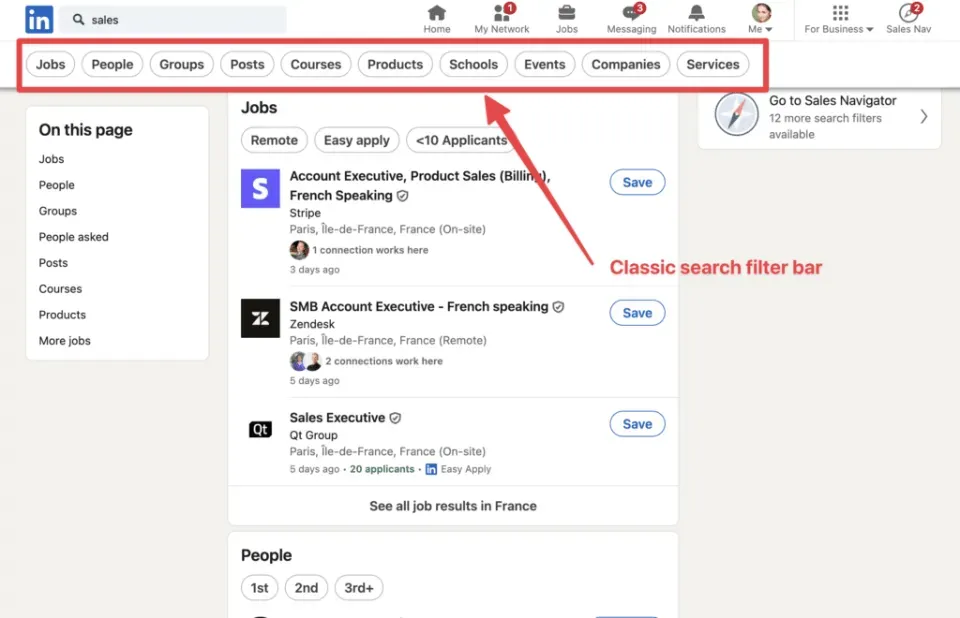
The beauty of this system lies in how you can layer filters on top of each other. You're not limited to just one or two criteria – you can combine location, industry, job title, company size, and dozens of other parameters to create laser-focused searches.
For example, if you're recruiting for a tech startup and need someone with experience at both large corporations and startups, you can filter for people who have worked at companies with 10,000+ employees AND companies with 1-50 employees. This level of specificity simply isn't possible with basic search.
Mastering LinkedIn's Advanced People Search
When it comes to finding the right people on LinkedIn, the advanced people search is where the real magic happens. This is especially powerful for recruiters, sales professionals, and anyone looking to build strategic business relationships.
Essential People Search Filters
Connection Level Filtering
One of most overlooked yet powerful filters is connection degree. You can specifically search for:
- 1st-degree connections: People you're directly connected to
- 2nd-degree connections: People connected to your connections (often the sweet spot for warm introductions)
- 3rd-degree connections: Extended network members
- Out of network: People with no mutual connections
This is crucial for your networking strategy. As one LinkedIn user noted, "Well, they say networking on LinkedIn gives a boost to career growth. But they never say how to do that." The connection filter is your roadmap for systematic networking.
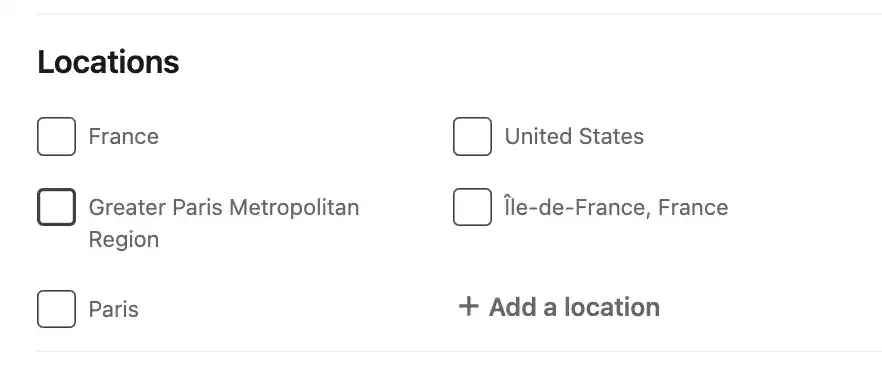
Location Targeting
The location filter goes far beyond just cities. You can search by:
- Country and region
- Specific metropolitan areas
- Within X miles of a location
- Multiple locations simultaneously
This solves the common frustration: "I have the issue where it feeds me great jobs out of my area and I can't relocate." Precise location filtering ensures you're only seeing relevant opportunities.
Company History Filtering
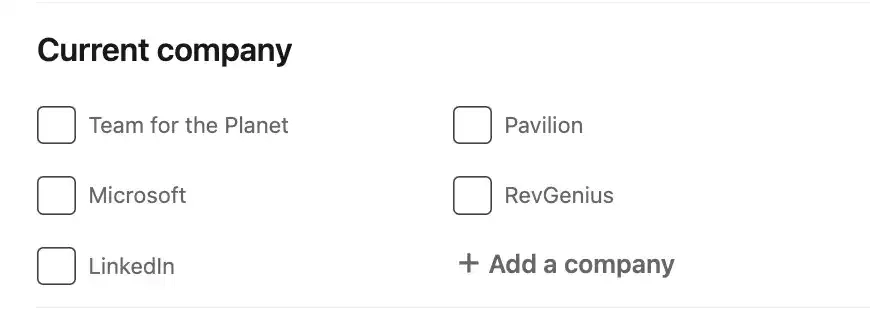
Here's where LinkedIn gets really powerful for candidate research. You can filter by:
- Current company: Where someone works now
- Past company: Previous employers
- Company type: Specific industries or company sizes
Remember that user who wanted to find "someone who worked at Google as a Manager in Business Development between 2010-2012"? Here's how you'd construct that search:
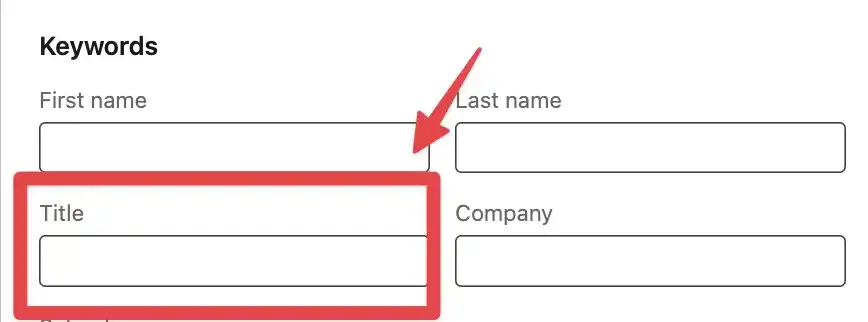
- Use the "Past Company" filter and enter "Google"
- In the title field, enter "Manager Business Development" or "Business Development Manager"
- Use the "When" field to specify the 2010-2012 timeframe
Industry and Function Filters
LinkedIn allows you to filter by:
- Specific industries (Technology, Healthcare, Finance, etc.)
- Job functions (Sales, Marketing, Engineering, etc.)
- Seniority level (Entry, Mid, Senior, Executive)
Advanced Keyword Strategies
The keyword field supports Boolean search operators, though many users struggle with this. As one frustrated user asked: "Can you write out what Boolean to use? I've looked all over and can't find it."
Here are the essential Boolean operators for LinkedIn:
- AND: Both terms must appear (Marketing AND Manager)
- OR: Either term can appear (Manager OR Director)
- NOT: Exclude specific terms (Marketing NOT Intern)
- Quotes: Exact phrase matching ("Digital Marketing Manager")
- Parentheses: Group terms ((Manager OR Director) AND Marketing)
For that Google Business Development Manager search, your Boolean query would be: "Google" AND ("Manager" OR "Business Development Manager") AND (2010 OR 2011 OR 2012)
Pro Tips for People Search
1. Use Multiple Keyword Variations. Instead of searching for just "Sales Manager," try: (Sales OR Business Development OR Revenue) AND (Manager OR Director OR Lead)
2. Leverage Profile Language Filter. If you're looking for international talent or specific language skills, use the profile language filter to find profiles written in specific languages.
3. Combine Filters Strategically. Don't just use one filter – layer them. For example, if you're looking for senior marketing professionals who've worked at both startups and enterprise companies, combine company size filters with seniority levels and industry classifications.
LinkedIn Advanced Company Search
Finding the right companies to target – whether for sales prospecting, partnership opportunities, or job applications – requires a strategic approach to company search filters.
Key Company Search Filters
Company Size Filtering
LinkedIn categorizes companies by employee count:
- Self-employed (1 employee)
- Small (2-10 employees)
- Medium (11-50 employees)
- Large (51-200 employees)
- Very Large (201-500 employees)
- Enterprise (501-1000 employees)
- Large Enterprise (1001-5000 employees)
- Very Large Enterprise (5001-10,000 employees)
- Mega Enterprise (10,001+ employees)
This granular sizing helps you target companies that match your ideal customer profile or career goals.
Industry Targeting
With over 150 industry categories, you can get incredibly specific:
- Technology subcategories (Software, Hardware, AI, etc.)
- Financial services (Banking, Insurance, Investment Management)
- Healthcare (Pharmaceuticals, Medical Devices, Hospitals)
Geographic Filters
Company location filtering includes:
- Headquarters location
- All company locations
- Specific regions or countries
Hiring Activity Indicators
One of the most valuable company filters is "Currently hiring." This shows companies actively posting job openings, making them ideal targets for job seekers or sales professionals looking to engage growing organizations.
LinkedIn Advanced Job Search
For job seekers, mastering advanced job search filters can mean the difference between endless scrolling through irrelevant listings and finding your next opportunity quickly.
Essential Job Search Filters
Experience Level Precision
The most common frustration expressed by job seekers: "whenever I filter for entry level jobs it still shows me a ton of jobs that require multiple years of experience." Here's how to combat this:
- Use the Experience Level filter: Select "Entry level" specifically
- Add keyword exclusions: Use Boolean search to exclude terms like "-senior" or "-experienced"
- Filter by company type: Startups and smaller companies often have more flexible experience requirements
- Look for "Associate" or "Junior" titles: These are often more accurate indicators of entry-level positions
Job Type Filtering
LinkedIn allows you to filter by:
- Full-time
- Part-time
- Contract
- Temporary
- Internship
- Volunteer
Date Posted Filter
To avoid seeing stale job postings, filter by:
- Past 24 hours
- Past week
- Past month
Location Specificity
Address the common complaint: "I have the issue where it feeds me great jobs out of my area and I can't relocate." Use precise location filtering:
- Specific cities
- "Remote" for work-from-home opportunities
- Within X miles of your location
Easy Apply Feature
Filter for jobs that allow one-click applications through LinkedIn's "Easy Apply" feature. This can significantly speed up your application process for relevant positions.
Advanced Job Search Strategies
Boolean Search for Jobs Many users don't realize you can use Boolean operators in job searches too. For example:
("Software Engineer" OR "Developer") AND Python AND -Senior"Marketing Manager" AND (startup OR "early stage")
Company Research Integration Before applying, use the company search features to research:
- Company size and growth trajectory
- Recent news and updates
- Employee backgrounds and career paths
- Current hiring trends
Once you've found the right opportunities, having an organized system to manage your outreach becomes crucial.
This is where tools like Kondo can be valuable – especially when you're conducting LinkedIn outreach to hiring managers or networking contacts.
Kondo's label system and inbox filters allow you to categorize conversations by company, role type, or application status, ensuring you never lose track of important follow-ups in your job search process.

Advanced Boolean Search Techniques
Boolean search is where LinkedIn's search capabilities transform from good to exceptional. Yet as many users have discovered, "Yes, but you may need an advanced version or some Boolean searches" – the challenge lies in knowing exactly how to construct these searches.
Essential Boolean Operators
AND Operator
Forces both terms to appear in results:
Marketing AND Manager(both words must be present)Google AND "Business Development"(company name and exact department)
OR Operator
Includes results with either term:
(Manager OR Director)(finds either title)(Python OR Java OR JavaScript)(any of these programming languages)
NOT Operator (-)
Excludes specific terms:
Developer -Senior(developers but not senior-level)Marketing -Intern(marketing roles excluding internships)
Quotation Marks
Search for exact phrases:
"Product Marketing Manager"(exact title match)"Series A funding"(specific funding stage)
Parentheses for Grouping
Combine multiple operators:
("Software Engineer" OR Developer) AND (Python OR Java) AND -Senior(Manager OR Director) AND ("Digital Marketing" OR "Content Marketing")
Real-World Boolean Examples
For Recruiters
Finding a VP of Sales with SaaS experience: ("VP Sales" OR "Vice President Sales" OR "Head of Sales") AND (SaaS OR "Software as a Service") AND -Consultant
For Sales Prospecting
Finding CMOs at mid-size tech companies: ("Chief Marketing Officer" OR CMO) AND (Technology OR Software OR SaaS) AND (51..200 employees)
For Job Seekers
Finding remote data science roles: ("Data Scientist" OR "Machine Learning Engineer") AND Remote AND (Python OR R) AND -Senior
Google + LinkedIn Search Power Combo
One underutilized strategy is using Google to search LinkedIn more effectively. Add site:linkedin.com to any Google search to find LinkedIn profiles directly:
site:linkedin.com "Google" "Business Development Manager" 2010..2012site:linkedin.com "CMO" "Series A" startupsite:linkedin.com "Software Engineer" Python remote
This approach often yields more precise results than LinkedIn's native search, especially for complex queries.
Overcoming LinkedIn Search Limitations
While LinkedIn's advanced search is powerful, it does have constraints that can frustrate users.
Search Result Limits
LinkedIn caps search results at 1,000 profiles, which can be limiting for broad searches. To work around this:
- Narrow your search criteria: Use more specific filters to get under the 1,000 result limit
- Break searches into segments: Search by location, then by company, then by title
- Use time-based filtering: Search by different date ranges or experience periods
Commercial Use Restrictions
Free LinkedIn accounts have monthly search limits and reduced filter options. Sales Navigator provides enhanced search capabilities for professional use.
Managing Your Search Workflow
When conducting multiple advanced searches, organization becomes critical. This is particularly important for sales professionals and recruiters who might be running dozens of searches per day.
For professionals who rely heavily on LinkedIn outreach, the native inbox can quickly become a bottleneck.
Tools like Kondo are designed to supercharge your post-search workflow. While LinkedIn's search helps you find people, Kondo's advanced inbox filters help you find the right conversations instantly.
You can use its label system to categorize prospects, set reminders for follow-ups, and use keyboard shortcuts to manage high-volume outreach campaigns with ease.
Best Practices for LinkedIn Advanced Search
To get the most out of these powerful tools, it’s not just about knowing which filters to use, but how to use them strategically. Follow these best practices to refine your approach and consistently achieve superior search results.
1. Start Broad, Then Narrow
Don't immediately apply every filter available. Start with 2-3 key criteria, see what results you get, then progressively add more filters to refine your search. This prevents you from accidentally filtering out good matches due to overly restrictive criteria.
2. Save and Track Your Best Searches
LinkedIn allows you to save searches and receive alerts when new people match your criteria. This is invaluable for:
- Ongoing recruitment for similar roles
- Monitoring competitor hiring patterns
- Tracking industry movement and trends
- Building talent pipelines for future needs
3. Use Search Alerts Strategically
Set up alerts for your most important searches, but be selective. Too many alerts can overwhelm your inbox and dilute the value of truly important matches.
4. Test Different Keyword Combinations
The same person might describe their role differently than how you search for it. A "Business Development Manager" might also be listed as "BD Manager," "Sales Development Manager," or "Growth Manager." Test multiple variations to ensure comprehensive coverage.
5. Leverage Profile Insights
When you find relevant profiles, look at the "People Also Viewed" section and similar profiles LinkedIn suggests. This can reveal additional search terms or criteria you hadn't considered.
6. Cross-Reference with Company Pages
Before reaching out to prospects, visit their company's LinkedIn page to understand recent news, growth patterns, and current priorities. This context makes your outreach more relevant and timely.
Putting It All Together: A Complete Search Strategy
Here's a step-by-step approach to maximize your LinkedIn advanced search effectiveness:
Phase 1: Define Your Ideal Profile
- Write down exactly who you're looking for
- List must-have criteria vs. nice-to-have criteria
- Identify potential job title variations and company types
Phase 2: Construct Your Search
- Start with 2-3 core filters (typically title, location, company)
- Add Boolean operators for multiple keyword variations
- Test the search and evaluate initial results
Phase 3: Refine and Optimize
- Add additional filters based on initial results
- Exclude irrelevant results with NOT operators
- Save successful searches for future use
Phase 4: Organize and Act
- Export or save promising profiles
- Develop a systematic outreach strategy
- Track response rates and optimize your approach
When managing the outreach that follows your searches, having the right tools becomes essential.
Many LinkedIn power users find that the platform's native messaging system becomes overwhelming when conducting systematic outreach campaigns.
This is where solutions like Kondo prove invaluable – allowing you to organize prospects with labels, set follow-up reminders, and use keyboard shortcuts to manage conversations efficiently.
Stop Searching, Start Finding
Mastering LinkedIn's advanced search filters is your key to unlocking the platform's true potential. You now have the tools to stop scrolling through irrelevant results and start finding the exact people, companies, and jobs you need with precision.
Your next step is simple: apply one of these techniques to your next search. But finding the right people is only half the battle. When your successful searches lead to a flood of new conversations, you need a system to manage them.
That's where you level up your entire LinkedIn workflow with Kondo. While advanced search fills your pipeline, Kondo's smart inbox keeps it organized with labels, reminders, and shortcuts. Stop losing track of important messages and start building better connections, faster.
Frequently Asked Questions (FAQ)
What are LinkedIn advanced search filters?
LinkedIn advanced search filters are a sophisticated set of tools that allow you to go beyond basic keyword searches and refine your search results based on specific criteria. These filters enable you to pinpoint relevant people, companies, jobs, posts, and more by applying multiple parameters like location, industry, company size, experience level, connection degree, and job title.
How do I access LinkedIn's advanced search features?
You can access LinkedIn's advanced search features by first performing a basic search using the main search bar. Once the initial results load, click the "All filters" button, usually found near the top of the results page. This action opens a panel displaying all available advanced filtering options, which you can then apply to narrow down your search.
Why am I still seeing irrelevant jobs when I filter for "entry-level" on LinkedIn?
You might still see irrelevant jobs, even when filtering for "entry-level," because job posters may not always categorize positions accurately, or their definition of "entry-level" might differ. To combat this, you can use more specific filters, such as excluding keywords like "senior" or "manager" using Boolean operators (e.g., NOT senior), filtering by company type (smaller companies or startups are often more open to true entry-level candidates), and looking for titles like "Associate" or "Junior."
What are Boolean operators and how can I use them in LinkedIn search?
Boolean operators are special words or symbols (like AND, OR, NOT, quotation marks, parentheses) that allow you to create more precise and complex search queries on LinkedIn.
- AND: Narrows your search by requiring all specified terms to be present (e.g.,
Marketing AND Manager). - OR: Broadens your search by finding results that include any of the specified terms (e.g.,
Sales OR "Business Development"). - NOT (often represented by a minus sign like
-): Excludes terms from your search (e.g.,Developer -Senior). - Quotation marks (" "): Search for an exact phrase (e.g.,
"Product Marketing Manager"). - Parentheses ( ): Group terms to control the order of operations for complex searches (e.g.,
(Manager OR Director) AND Technology). Using these operators helps you refine your searches significantly for more relevant results.
How can I find someone on LinkedIn who worked at a specific company during a particular time frame?
To find someone who worked at a specific company during a particular time, like "Google as a Manager in Business Development between 2010-2012," you would use LinkedIn's advanced people search filters.
- Go to the "Past Company" filter and enter the company name (e.g., "Google").
- In the "Title" filter, enter the job title or relevant keywords (e.g., "Manager Business Development" or "Business Development Manager").
- While LinkedIn's direct date range filter for past roles can be limited, you can often imply the timeframe by including years as keywords in your main search query alongside other filters or look for profile sections that allow specifying dates if available. The article mentions using a "When" field in conjunction with these filters if available in your LinkedIn interface.
What are the main limitations of LinkedIn search and how can I overcome them?
The main limitations of LinkedIn search include a cap on search results (often 1,000 profiles for free accounts) and commercial use restrictions that limit the number of searches or filter options for free users. To overcome these:
- Result Limits: Narrow your search criteria with more specific filters. Break down broad searches into smaller, segmented searches (e.g., by different locations or more specific job titles).
- Commercial Use Limits: Consider upgrading to a premium LinkedIn account like Sales Navigator for more extensive search capabilities if you're a heavy user. For general users, being very targeted with searches can help stay within limits.